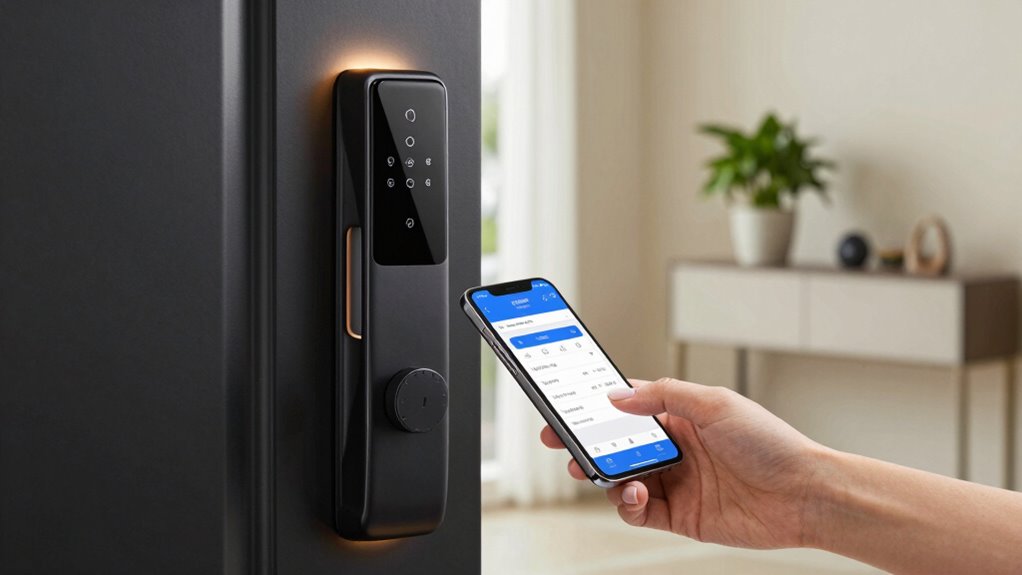

If you’ve lost your phone, act quickly to protect your smart lock. Immediately log out or disable the app to prevent unauthorized access, change your lock’s password or PIN, and remove your device from trusted lists. Review recent access logs for suspicious activity, enable two-factor authentication, and use remote lock features if available. Contact support and report the loss to authorities. Continue to learn how to strengthen your security measures and prevent future issues.
Key Takeaways
- Immediately revoke access by logging out or disabling the smart lock app on your lost phone.
- Use device tracking features like Find My iPhone or Find My Device to locate or wipe your phone remotely.
- Change your smart lock passwords or PINs and enable two-factor authentication for added security.
- Remove the lost device from trusted devices and revoke any suspicious app permissions.
- Monitor access logs for unauthorized activity and set up alerts for real-time security notifications.

Philips Wi-Fi Door Lock, WiFi Smart Lock Keyless Entry Deadbolt for Front Door, Compatible with Alexa & Google Assistant, Remote Control, Built-in WiFi, APP Fingerprint Passcode Unlock, Auto Locking
𝐅𝐥𝐞𝐱𝐢𝐛𝐥𝐞 𝐖𝐚𝐲𝐬 𝐭𝐨 𝐔𝐧𝐥𝐨𝐜𝐤: Unlock the way you want: app, passcode, fingerprint, physical key, or voice via Alexa/Google…
As an affiliate, we earn on qualifying purchases.
As an affiliate, we earn on qualifying purchases.
Why Losing Your Phone Can Threaten Your Smart Lock Security

Losing your phone can considerably compromise your smart lock’s security because your phone often serves as the primary key to access your home. If someone steals your device, they might gain control over your smart lock app, opening your door without permission. Additionally, theft increases the risk of malicious actors using location tracking features to pinpoint your home’s whereabouts. This can lead to targeted theft or other security breaches. Without your phone, you lose the ability to remotely disable or manage your smart lock, leaving your home vulnerable. It’s essential to act quickly by reporting the theft, removing your device from trusted devices, and changing your account passwords to prevent unauthorized access. Recognizing the importance of smart lock security features can help you better safeguard your home in such situations. Being aware of device recovery options can also assist in recovering a lost or stolen phone promptly, reducing potential security risks and ensuring your privacy protection remains intact. Enabling two-factor authentication adds an extra layer of security even if your device is compromised.
smart lock password reset kit
As an affiliate, we earn on qualifying purchases.
As an affiliate, we earn on qualifying purchases.
Immediately Log Out or Disable Your Smart Lock App

When your phone is stolen, your first priority should be to immediately log out or disable your smart lock app. This prevents unauthorized access to your lock controls and keeps your home secure. Use device tracking features to locate your phone quickly; if you can’t recover it, consider initiating a remote wipe to erase sensitive data and prevent thieves from controlling your smart lock remotely. Disabling the app stops anyone from making changes or bypassing your door without your permission. Acting fast minimizes the risk of someone gaining access to your smart lock and your personal information. Additionally, familiarize yourself with your smart lock’s security features so you know how to respond effectively in such situations. Remember, quick action can protect your home security and your privacy, so don’t delay in disabling or logging out of your smart lock app right away. Being aware of device security options can further help you safeguard your smart lock and other connected devices. Also, consider changing your passwords and enabling two-factor authentication to add an extra layer of protection. To better prepare for such incidents, review your smart lock’s emergency protocol so you know the proper steps to take immediately. Staying informed about cybersecurity best practices can help you better defend your smart devices from potential threats.

TOKCKYBL Rechargeable Motorcycle Disc Lock with 120dB Alarm, 5FT Reminder Cable with Anti-Theft Helmet Lock Cable, IP67 Waterproof, Universal Fit for Motorcycle Bike Scooter Ebike
120dB LOUD ALARM & VIBRATION SENSOR – Equipped with a highly sensitive vibration sensor, this motorcycle alarm lock…
As an affiliate, we earn on qualifying purchases.
As an affiliate, we earn on qualifying purchases.
Change Your Smart Lock Password or PIN

After your phone is stolen, it’s essential to change your smart lock password or PIN to prevent unauthorized access. Start with a password change or PIN update immediately. Access your smart lock app on a trusted device, navigate to the security settings, and create a new password or PIN. This simple step blocks anyone who might try to enter using your old credentials. Here’s a quick overview:
| Step | Action | Result |
|---|---|---|
| 1 | Open app | Access security settings |
| 2 | Select password/PIN | Prepare for update |
| 3 | Enter new password/PIN | Secure your lock |
Performing a password change or pin update is vital to safeguard your home quickly. It’s also advisable to review your smart lock security features regularly to stay ahead of potential vulnerabilities. Staying informed about industry trends can help you stay updated on new security features or updates for your smart lock system. Regularly updating your credentials is a key part of home security best practices, especially after a device theft. Additionally, enabling two-factor authentication can provide an extra layer of protection. Don’t delay—secure your lock now.
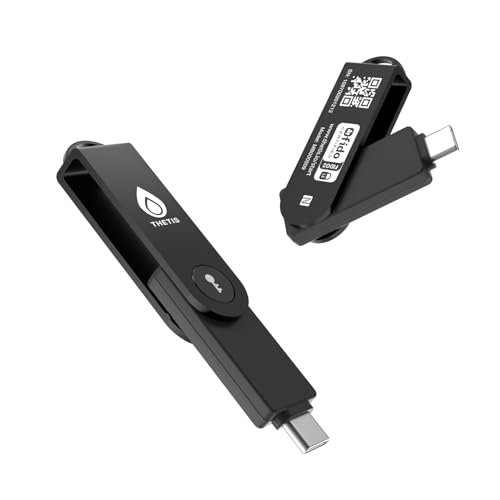
Thetis Pro-C FIDO2 (L2) Security Key Passkey Device with USB C & NFC, TOTP/HOTP Authenticator APP, FIDO 2.0 Two Factor Authentication 2FA MFA, Supports Windows/macOS/Linux/Gmail/Facebook/Dropbox
FIDO2 Level 2 Passkey Authentication: Enable secure, passwordless sign-in on supported services using a certified FIDO2 Level 2…
As an affiliate, we earn on qualifying purchases.
As an affiliate, we earn on qualifying purchases.
Remove Your Phone From Trusted Devices and Users

To prevent unauthorized access to your smart lock, it’s essential to remove your phone from any trusted devices and user lists immediately. This step guarantees that Bluetooth pairing and trusted device permissions don’t fall into the wrong hands. Trusted device removal is quick and crucial for security. Additionally, ensure your lock’s filtration system is functioning properly to maintain optimal performance and security. Regularly updating your lock’s firmware can help protect against vulnerabilities and ensure your security protocols are current. Knowing how to manage device settings can further enhance your security measures. When managing your device, it’s helpful to understand the importance of deep‑sky imaging principles, as they emphasize thoroughness and security in your setup. Moreover, staying informed about the latest security zone best practices ensures comprehensive protection for your smart home devices.
- Access your smart lock’s app or control panel
- Locate the trusted devices or user list
- Select your phone for removal
- Confirm trusted device removal to revoke access
- Check for any lingering Bluetooth pairing connections
Removing your phone from trusted devices blocks potential access routes. Make sure your phone no longer appears in the trusted device list, and Bluetooth pairing is disconnected. Acting swiftly helps prevent unauthorized entries, keeping your smart lock secure.
Review Access Logs for Unauthorized Entries

You should start by checking the recent access logs to see who has entered your home and when. Look for any unfamiliar or suspicious activity that could indicate unauthorized entries. If you spot anything unusual, consider adjusting your lock permissions to enhance security. Regularly reviewing access logs helps you stay informed about your home’s security status, and staying vigilant about security updates can further protect your smart lock system. Additionally, keeping a record of access attempts can help identify patterns or repeated unauthorized access. Being aware of Rhythm Failure themes can also remind you to remain vigilant about your security measures.
Check Recent Access Activity
Checking your recent access activity is a crucial step in safeguarding your home after losing your phone. Review the access logs to spot any unauthorized entries or suspicious activity. This helps you determine if someone else accessed your smart lock without permission. Look for unusual times or unfamiliar devices listed in the logs. Quickly identifying suspicious activity allows you to act fast. Here are key steps to take:
- Review the timestamp of each access
- Confirm the devices used for entry
- Note any access during odd hours
- Check for repeated failed attempts
- Cross-reference with your known schedule
- Consider security features that may alert you to unusual activity
- Stay informed about AI-driven solutions that could enhance your home security systems
Identify Unauthorized Entries
Reviewing your access logs is essential for spotting unauthorized entries. By carefully examining the activity history, you can detect signs of a security breach or unauthorized access. Look for unfamiliar dates, times, or devices that don’t match your usual patterns. If you notice any suspicious activity, it’s a clear indicator that someone else may have gained access to your smart lock. Pay close attention to entries during odd hours or from unknown users. Identifying these anomalies quickly helps you respond proactively and prevents further compromise. Regularly reviewing access logs keeps you aware of any potential security issues and strengthens your overall home security. Acting promptly on suspicious entries can help you secure your property and prevent unauthorized access in the future.
Adjust Lock Permissions
If you spot unfamiliar activity in your access logs, it’s time to adjust your lock permissions to prevent further unauthorized entries. Review who has access and revoke permissions for any suspicious users. Use phone tracking features to identify any devices that attempted entry without your consent. Update your lock permission settings to restrict access only to trusted devices or users. Consider temporarily disabling remote access until you confirm your lock’s security. Regularly monitor the logs to catch unauthorized attempts early. Changing permissions minimizes the risk of someone else gaining entry, especially if your phone is lost or stolen. Taking these steps helps secure your smart lock and keeps your property safe. Remember, controlling lock permission and monitoring access logs are your first defenses against unauthorized entries.
Enable Two-Factor Authentication for Extra Security

Enabling two-factor authentication adds an extra layer of security to your smart lock. You should set up authentication apps, use backup codes regularly, and keep your contact info current. These steps help guarantee you can regain access if your phone is lost or compromised.
Set Up Authentication Apps
Setting up authentication apps is a crucial step in boosting your smart lock’s security after losing your phone. These apps generate time-based codes that add an extra security layer. To begin, download a reputable authentication app like Google Authenticator or Authy. During app setup, scan the QR code provided by your smart lock’s security settings. This links the app to your device, ensuring continuous protection.
Remember to:
- Keep your backup codes secure
- Enable push notifications for quick access
- Regularly update your app
- Link multiple devices if possible
- Test the setup to confirm it works
Using authentication apps makes it harder for others to access your smart lock, even if they have your password. This extra step ensures your device’s security remains intact.
Use Backup Codes Regularly
After setting up your authentication app, it’s wise to keep backup codes handy. These codes are a vital part of your security checklist, providing a backup strategy if you lose access to your primary device. Regularly using and updating backup codes guarantees you won’t be locked out of your accounts or smart lock controls during emergencies. Store these codes securely offline, like in a safe or a secure digital vault, and avoid sharing them. Incorporate this practice into your overall security checklist to reinforce your protection. By doing so, you reduce vulnerability and guarantee quick recovery if your phone is lost or stolen. Using backup codes consistently is a simple yet effective way to add an extra layer of security to your smart lock system.
Update Contact Information
To guarantee you can recover access quickly if your phone is lost or stolen, it’s essential to update your contact information with your security providers. This includes your emergency contact details and current phone number. Doing a contact update ensures you receive two-factor authentication codes and alerts promptly.
Make sure you:
- Add a trusted emergency contact
- Update your primary phone number
- Confirm your email address
- Link backup authentication methods
- Review security questions regularly
Enabling two-factor authentication adds an extra layer of security, but it’s only effective if your contact information is current. Keeping your emergency contact updated ensures you can regain access swiftly and securely to your smart lock and other accounts.
Use Remote Lock or Lockout Features (If Available)

If your smart lock offers remote lock or lockout features, activating them promptly can prevent unauthorized access to your home. Use your app to enable these security settings immediately after losing your phone. Locking your smart lock remotely guarantees no one can enter using your lost device. Additionally, enable app notifications so you’re alerted to any attempts to unlock your door. This real-time update allows you to respond quickly if someone tries to access your property. Remember, these features are designed to give you control even when your phone isn’t nearby. Acting swiftly to enable remote lock or lockout options helps safeguard your home and minimizes the risk of unauthorized entries. Always check your app’s security settings to confirm these features are activated as soon as possible.
Contact Support and Report the Loss

When you realize your phone is lost, contacting your smart lock’s support team should be your immediate step. They can help you disable access, change security settings, and prevent unauthorized entry. Be prepared to provide proof of ownership and details about your device. Support teams can assist with phone tracking options if available and advise on securing your account. Reporting the loss also helps prevent potential misuse, especially if you have device insurance that covers replacement or theft. Keep a record of your report for reference. Remember, quick action minimizes risks and safeguards your smart lock’s security.
- Verify if phone tracking apps are active
- Cancel or suspend device insurance
- Request support for remote lock disablement
- Change your account passwords
- Report the loss to authorities for added protection
Tips to Prevent Losing Your Phone Again

Losing your phone can happen in an instant, but taking proactive steps can markedly reduce the risk of it happening again. Start by investing in phone insurance to cover accidental loss or damage. This gives you peace of mind and quick recovery options if the worst happens. Additionally, use tracking apps like Find My iPhone or Find My Device to help locate your phone quickly if it goes missing. Enable these features and keep your location services active. Always keep your phone in a designated spot or use accessories like keychains or wallets to prevent accidental drops. Regularly back up your data, so you’re prepared for any loss. Combining insurance with tracking apps and good habits markedly lowers the chances of losing your phone again.
Frequently Asked Questions
Can I Still Control My Smart Lock Without My Phone?
Yes, you can still control your smart lock without your phone if you have alternative access options like a keypad code or physical key. To guarantee your Phone security, consider setting up device recovery methods such as backup authentication or a secondary device. These steps allow you to manage your smart lock remotely, even if your phone is lost, giving you peace of mind and continued control over your home security.
What Should I Do if I Find My Lost Phone Later?
If you find your lost phone later, prioritize phone recovery and privacy protection. Act quickly to secure your accounts, change passwords, and enable two-factor authentication. Did you know 20% of lost phones are recovered within a week? Once recovered, verify your smart lock controls are still secure, and update your app credentials if needed. Taking these steps helps safeguard your home and personal information from potential breaches.
Are There Backup Methods to Access My Smart Lock?
Yes, you can use backup codes or alternative access methods to open your smart lock. Keep your backup codes in a secure place, like a password manager or a physical safe. Many smart locks also offer options like keypad entry, biometric access, or a secondary app. Make sure to set up these alternatives beforehand, so you’re prepared if your primary method becomes unavailable.
Will Disabling My App Also Disable the Smart Lock?
Disabling your app doesn’t automatically disable your smart lock, but it may revoke app permissions, limiting remote control. To guarantee security, you should update your account recovery options and change your passwords promptly. Disabling the app might prevent you from accessing the lock remotely, so consider setting up backup access methods first. Always review your account recovery settings to prevent unauthorized access if your phone is lost or compromised.
How Long Does It Take to Revoke Access After Losing My Phone?
Access revocation happens almost instantly when you revoke it, but keep in mind, there can be a slight time delay depending on your system. Usually, it takes just a few seconds to deactivate access after losing your phone, ensuring your smart lock stays secure. Don’t wait around—act quickly to revoke access, and you’ll prevent any unauthorized entry with minimal delay. Your security depends on swift action!
Conclusion
Losing your phone puts your smart lock at risk, but acting quickly can protect your home. Did you know that over 60% of smart device breaches happen due to lost or stolen devices? By promptly securing your lock, changing passwords, and reviewing access logs, you minimize the risk of unauthorized entry. Stay vigilant and adopt preventive habits to keep your smart home safe—because your security depends on it.