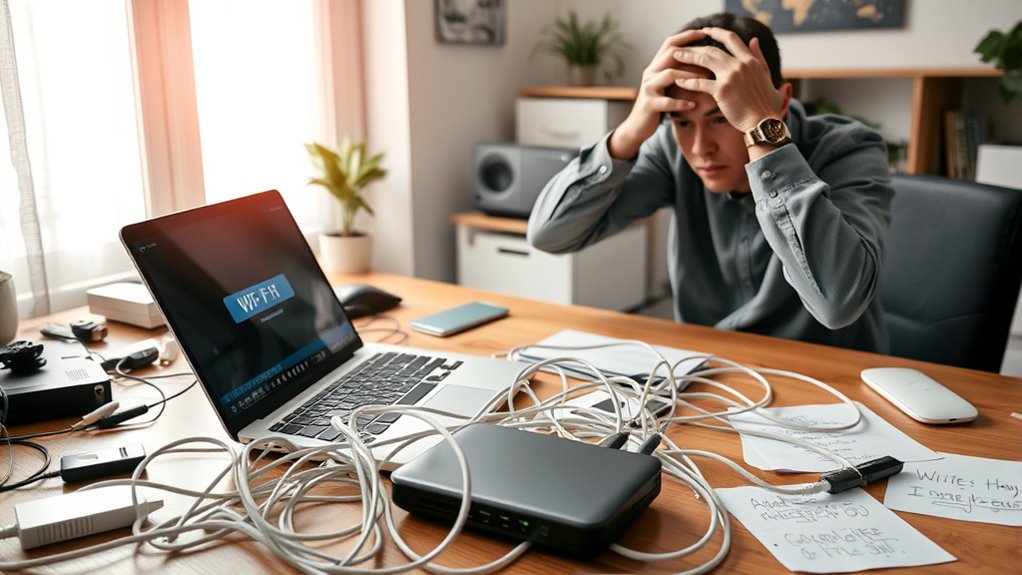

To diagnose Wi-Fi issues causing video lag, start by checking for signal interference from nearby networks or gadgets like cordless phones. Make certain your device is close to the router and eliminate obstacles that weaken signals. Update your router’s firmware and adjust channels to reduce interference. Also, consider reducing connected devices or enabling Quality of Service (QoS) settings to prioritize streaming. If you want to discover more ways to improve your Wi-Fi performance, keep exploring these solutions.
Key Takeaways
- Check for Wi-Fi interference from nearby networks or electronic devices on the same channel.
- Assess signal strength and improve coverage by moving closer to the router or adding extenders.
- Update router firmware regularly to fix bugs that may cause connection instability.
- Optimize router placement in a central, open location away from interference sources.
- Use QoS settings to prioritize video streaming traffic and limit bandwidth-hogging devices.
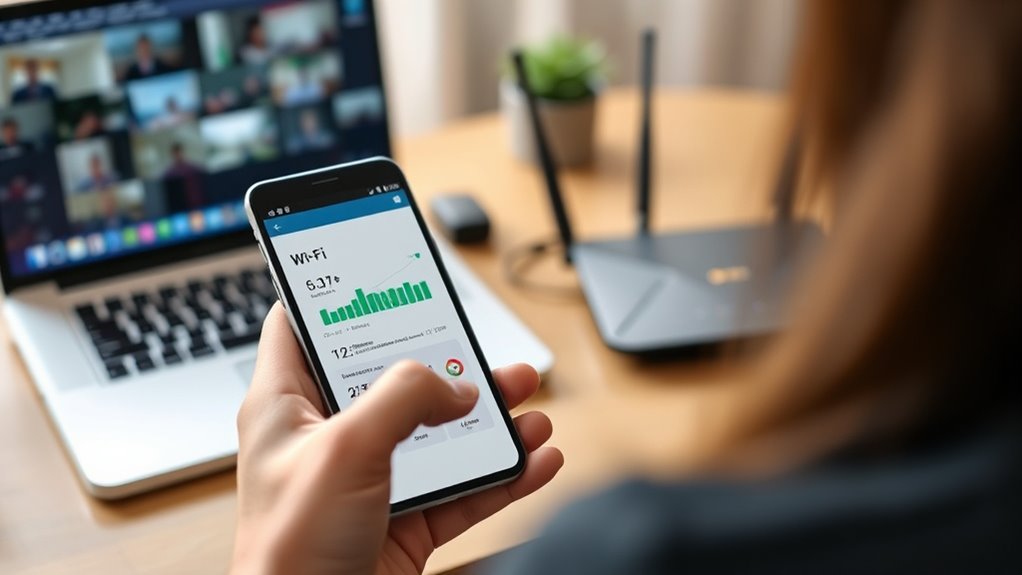
When your Wi-Fi connection slows down or drops unexpectedly, it can be frustrating and disruptive. One common cause of video lag or buffering issues is interference around your router. Router interference happens when multiple devices or other wireless networks operate on similar channels, causing signal disruptions. This interference can weaken your connection, making it difficult for your device to maintain a steady stream of data needed for smooth video playback. To diagnose this, you should check if other nearby Wi-Fi networks are operating on the same channel as your router. Many routers allow you to change channels through their settings, which can help reduce interference. Additionally, ensure that your router isn’t placed close to other electronic devices like cordless phones, microwave ovens, or Bluetooth gadgets, all of which can contribute to signal interference. Moving your router to a more central, open location can markedly improve signal strength and reduce interference issues.
Signal strength plays an essential role in your Wi-Fi performance, especially when streaming videos. If your device is far from the router or if there are many obstacles like walls or furniture blocking the signal, your connection can weaken. Weak signal strength often results in buffering, lag, or dropped video streams. To troubleshoot, start by checking your device’s Wi-Fi signal indicator. If it shows weak or fluctuating bars, move closer to the router to see if your connection stabilizes. You might also consider upgrading your router or adding a Wi-Fi extender if your home has dead zones. An increase in signal strength guarantees your device can receive a more reliable, consistent data flow, which is vital for uninterrupted video streaming. Understanding how sound vibrations influence cellular processes can also provide insight into improving overall Wi-Fi stability.
Another step is to verify your router’s settings and firmware. Outdated firmware can cause performance issues, including signal instability. Regularly updating your router’s firmware can resolve bugs and improve overall performance. Also, review your network’s security settings, as unauthorized users can drain your bandwidth, leading to sluggish video streaming. Limiting device connections or prioritizing video traffic through Quality of Service (QoS) settings can help manage bandwidth more effectively.

TP-Link AC1200 WiFi Extender – 1.2Gbps Home Signal Booster, Dual Band 5GHz/2.4GHz, Up to 1600 Sq.ft and 32 Devices, EasyMesh Compatible, One Ethernet Port (RE315)
- Enhanced Wi-Fi Coverage: Eliminates dead zones with strong signal
- Dual-Band Speed: Supports 867 Mbps on 5GHz and 300 Mbps on 2.4GHz
- Wide Coverage Area: Covers up to 1500 sq.ft with 2 antennas
As an affiliate, we earn on qualifying purchases.
As an affiliate, we earn on qualifying purchases.
Frequently Asked Questions
Can Upgrading My Router Fix Wi-Fi Video Lag?
Upgrading your router can definitely help fix Wi-Fi video lag, especially if you choose a model with better range and faster speeds. Newer routers often have advanced features that reduce signal interference and improve connection stability. If your current router is outdated or struggles with multiple devices, an upgrade can provide a stronger, more reliable signal, improving your streaming experience and reducing video lag markedly.
How Does Interference Impact Wi-Fi Streaming Quality?
Wireless interference can considerably impact your streaming quality by causing signal disruption. For example, if you live near a microwave or cordless phone, their signals might interfere with your Wi-Fi, leading to lag or buffering. This interference creates signal disruption, weakening your connection and making streaming choppy. To improve, you can move your router away from potential sources of interference or switch to a less congested Wi-Fi channel.
Are Certain Devices More Prone to Wi-Fi Lag Issues?
Some devices are more prone to Wi-Fi lag issues because of device compatibility and signal strength. Older devices or those with outdated network standards may struggle to connect smoothly, causing lag. Additionally, if your device has weak signal strength or is far from the router, it can lead to buffering and video lag. Upgrading your device or improving your Wi-Fi setup can help diminish lag and ensure a better streaming experience.
What’s the Best Way to Test Wi-Fi Speed for Streaming?
You might think streaming tests are just about watching videos, but the real secret’s in bandwidth testing and signal strength. To get the best results, run a speed test during your usual streaming time, ensuring your device is close to the router. Check signal strength on your device, and run multiple tests to see if your Wi-Fi consistently delivers enough bandwidth for smooth streaming. Irony? Sometimes, the fastest Wi-Fi isn’t enough without a strong signal!
Does Changing Wi-Fi Channels Improve Video Streaming Performance?
Yes, changing Wi-Fi channels can improve your video streaming performance. By selecting the right channel, you reduce interference from nearby networks and electronic devices, which often cause lag and buffering. Use a Wi-Fi analyzer tool to identify the least congested channel and switch to it through your router settings. This interference reduction helps create a more stable connection, resulting in smoother, higher-quality video streaming.
As an affiliate, we earn on qualifying purchases.
Conclusion
As you explore your Wi-Fi setup, remember that a little patience goes a long way. Sometimes, the tiniest adjustments can brighten your streaming experience and make video calls smoother. Think of it as tuning a musical instrument—you’ll find the perfect harmony with a gentle touch. Embrace the process, and soon, you’ll enjoy seamless connections that make every moment more enjoyable. After all, a well-tuned network awaits your next great digital adventure.
Wi-Fi Analyzer
- Snapshot of Nearby Wi-Fi Signals: Displays real-time Wi-Fi signal overview
- Multiple Signal Views: Offers 5 different signal analysis modes
- Customizable Settings: Allows extensive user configuration
As an affiliate, we earn on qualifying purchases.
As an affiliate, we earn on qualifying purchases.

Omada Fusion 2.5G Multi-WAN Wired VPN Router
- Cloud Management: License-free remote network access
- Easy Setup: Bluetooth setup with Omada App
- Device Discovery: Batch adopt multiple devices
As an affiliate, we earn on qualifying purchases.
As an affiliate, we earn on qualifying purchases.