
The biggest mistake that frustrates Ring users is expecting instant Live View access right after opening the app. Connection delays caused by poor internet, network congestion, or outdated firmware often lead to blank screens, spinning circles, or no video. Many overlook the importance of updating devices or optimizing their Wi-Fi, which worsens delays. To improve your experience and avoid these common hurdles, keep your setup current and your network strong—more tips ahead can help you stay ahead.
Key Takeaways
- Assuming clicking Live View guarantees instant connection, leading to user frustration during delays.
- Poor internet connection or network congestion causing prolonged connection times.
- Outdated app or device firmware slowing down or preventing Live View access.
- Weak Wi-Fi signals or improper router placement reducing connection reliability.
- Neglecting network optimization and device updates, resulting in frequent connection issues.
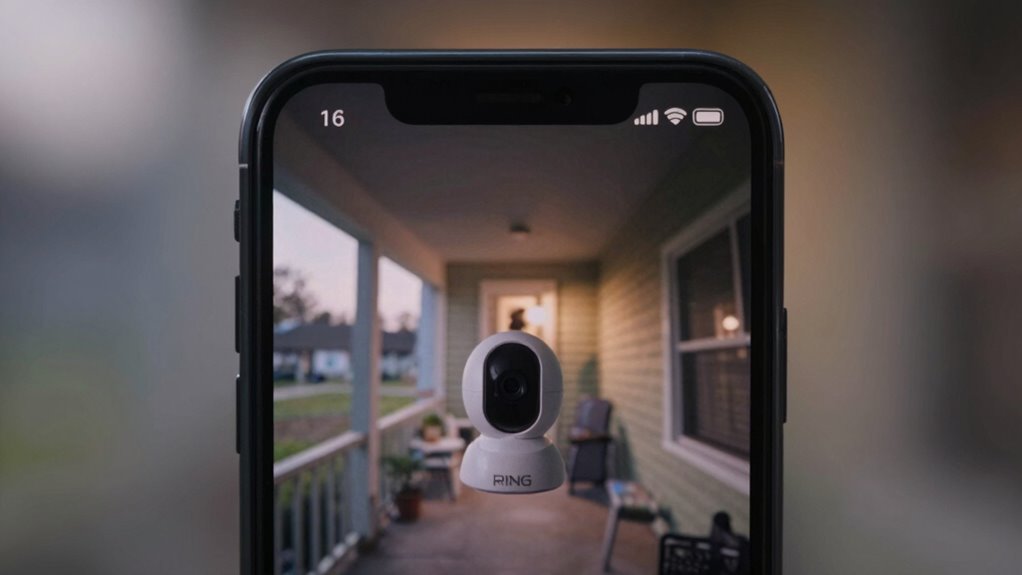
If you’ve ever relied on Ring’s Live View feature to monitor your home, you might have run into a common mistake that can compromise your security. Many users assume that simply opening the app and clicking on Live View guarantees instant access and security, but this isn’t always the case. A frequent frustration comes from delayed or failed connections, which disrupt the user experience and leave you unsure whether your property is truly secure. When your security camera struggles to connect quickly, it creates a false sense of safety, and that’s the last thing you want when trying to protect your home.
Relying solely on Live View can create false security due to connection delays and technical issues.
The problem often stems from the way the Ring app handles Live View requests. Instead of providing immediate access, the app sometimes takes several seconds—or even longer—to establish a connection. During this wait, you might see a spinning circle or a blank screen, which can be alarming, especially if you’re trying to check on a suspicious activity. This delay can be caused by several factors, including poor internet connection, network congestion, or the way the app manages device resources. When these issues occur, they diminish the overall user experience and make you question whether your security camera is reliable. A strong and stable network is essential to ensure quick and reliable connections during these moments. Additionally, understanding how network congestion impacts your camera’s performance can help you troubleshoot more effectively. Regularly checking your internet speed and quality can help prevent these connection issues before they occur.
Another common mistake is not guaranteeing your device and app are properly updated. Outdated firmware or app versions can cause compatibility problems, leading to slower connection times or failed attempts to access Live View. Many users overlook this step, assuming that the app will always work flawlessly. But neglecting updates can cause your security camera to underperform when you need it most. This oversight is a simple fix but can make a big difference in how smoothly your Live View functions during critical moments. Keeping your device firmware and app up-to-date can significantly improve connection reliability.
Additionally, many users don’t optimize their network settings for security camera use. If your Wi-Fi signal is weak or congested, connecting to Live View becomes a challenge. Moving your router closer to your cameras, using a 5GHz band, or prioritizing your security devices on your network can improve connection speed and stability. Ignoring these steps only prolongs the frustration of lagging video feeds and impacts your overall user experience.
Ultimately, the biggest mistake is underestimating the importance of a reliable network and proper device maintenance. When your security camera’s Live View isn’t working as it should, it’s easy to feel vulnerable. To avoid this, stay vigilant about updates, optimize your Wi-Fi, and understand that a smooth user experience depends on these proactive measures. Addressing these issues ensures that your security camera can provide the real-time monitoring you need, without unnecessary delays or frustrations.
Wi-Fi range extender for security cameras
As an affiliate, we earn on qualifying purchases.
As an affiliate, we earn on qualifying purchases.
Frequently Asked Questions
How Do I Reset My Ring Live View Settings?
To reset your Ring Live View settings, start by opening the Ring app and browsing to your device. Tap on the device, then go to Privacy Settings and toggle off Video Encryption. After that, turn off and on your device to refresh the connection. Finally, re-enable Video Encryption if needed. This process resets your settings and can resolve issues related to Live View, helping you manage your privacy preferences effectively.
Can I Customize Notifications for Live View?
Yes, you can customize notifications for live view. By adjusting your alert preferences, you control when and how you receive alerts. Explore your Ring app, navigate to notification settings, and tailor your alert preferences to suit your needs. This means you get timely, targeted notifications without unnecessary interruptions. Perfectly personalized, your notifications become more precise, providing peace of mind and proactive protection whenever you need it most.
What Internet Speed Is Optimal for Live View?
For ideal live view, you should have at least 3 Mbps upload speed for smooth streaming, but 5 Mbps or higher is preferable. To guarantee consistent performance, focus on bandwidth optimization by upgrading your internet plan if needed. Proper camera placement also helps by reducing interference and guaranteeing a strong Wi-Fi signal. These steps assure clear, lag-free live views, minimizing user frustration during essential moments.
How Do I Troubleshoot Live View Connection Issues?
To troubleshoot live view connection issues, first check your camera placement to guarantee it’s within range of your Wi-Fi router, avoiding obstacles like walls. Reduce signal interference by moving electronic devices away from your router or camera. Restart your router and the Ring device, and verify your internet speed meets the recommended requirements. Updating your Ring app and firmware can also improve connection stability.
Is There a Way to Improve Live View Video Quality?
Want sharper live view videos? You can improve quality by adjusting settings that reduce video compression, which often degrades clarity. Also, guarantee your camera placement offers a clear, unobstructed view and is within a strong Wi-Fi signal. These tweaks help maximize your camera’s potential, making your video feed more detailed and reliable. Isn’t it worth a little effort for clearer, crisper live footage?
As an affiliate, we earn on qualifying purchases.
Conclusion
Ultimately, avoiding the common mistake of leaving the Ring Live View open too long isn’t just about convenience—it’s about understanding the technology’s limits. Think of it like a candle burning too close to the wick; pushing your device too hard can lead to frustration or failure. Embracing mindful usage reminds us that even the smartest gadgets have boundaries. Respecting those limits helps you stay connected without unnecessary hassle, proving patience and awareness are key in tech reliability.
high-speed internet router for home security
As an affiliate, we earn on qualifying purchases.
As an affiliate, we earn on qualifying purchases.
network optimization tools for Wi-Fi
As an affiliate, we earn on qualifying purchases.
As an affiliate, we earn on qualifying purchases.