To get your Ring doorbell back online, start by confirming your Wi-Fi is working. Test it with another device to ascertain there are no outages. Next, check your Wi-Fi password and update it in the Ring app if needed. Make sure your router is within 30 feet of the doorbell and free from obstructions for better signal strength. If problems persist, restart your modem and router. Finally, verify that your Ring doorbell is compatible with your Wi-Fi frequency. If your doorbell still isn't connecting, there's more to explore to get it fully functional again.
Key Takeaways
- Confirm Wi-Fi functionality by testing with another device and checking for ISP outages.
- Verify and update the Wi-Fi password in the Ring app if it has changed.
- Assess the router's location and ensure it's within 30 feet of the Ring doorbell.
- Restart both the modem and router to clear temporary connectivity issues.
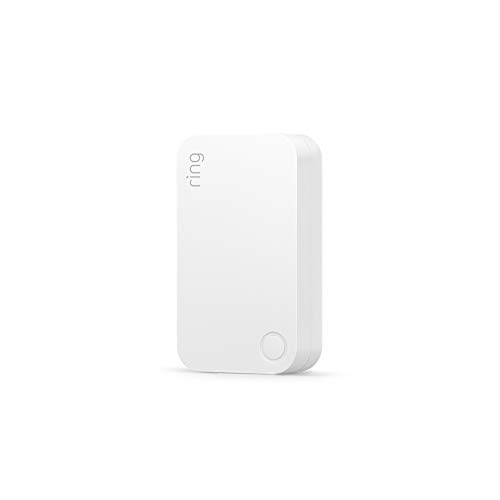
Ring Alarm Range Extender (2nd Gen) | Extend Ring Device Coverage Up to 250ft Range | Eliminate Dead Zones | Easy Plug-and-Play Setup | Base Station Required
- Extended Range: Up to 250ft coverage for Ring devices
- Easy Setup: Plug-and-play installation without tools
- Wall Outlet Power: Plugs into standard wall outlets
As an affiliate, we earn on qualifying purchases.
As an affiliate, we earn on qualifying purchases.
Confirm Wi-Fi Functionality
To guarantee your Ring doorbell reconnects, start by confirming your Wi-Fi's functionality with another device, like your smartphone or tablet. Check if this device can connect to the internet. If it can't, the problem might lie with your internet service provider (ISP) or the router. In this case, you'll want to contact your ISP for assistance.
Additionally, verify that your indoor air quality isn't compromised by allergens or pollutants, which can affect electronic device performance; consider using ozone air purifiers for cleaner air.
Next, take a look at the Ring app. If it shows that your doorbell is offline, it could indicate that the issue is specific to the doorbell or the entire network. Make sure you verify the status of your internet service in your area, as outages can affect connectivity for all devices, including your Ring doorbell.
If your device is still offline, try troubleshooting your network. Restart your modem and router to see if it resolves any temporary issues affecting the signal. This step often helps restore connectivity.
Once your network is stable, attempt to reconnect your Ring doorbell to the Wi-Fi. By verifying your network is up and running, you'll have a better chance of getting your doorbell back online quickly.

TP-Link AC1200 WiFi Extender – 1.2Gbps Home Signal Booster, Dual Band 5GHz/2.4GHz, Up to 1600 Sq.ft and 32 Devices, EasyMesh Compatible, One Ethernet Port (RE315)
- Enhanced Wi-Fi Coverage: Eliminates dead zones with strong signal
- Dual-Band Speed: Supports 867 Mbps on 5GHz and 300 Mbps on 2.4GHz
- Wide Coverage Area: Covers up to 1500 sq.ft with 2 antennas
As an affiliate, we earn on qualifying purchases.
As an affiliate, we earn on qualifying purchases.
Verify Wi-Fi Password

After ensuring your Wi-Fi is functioning properly, double-check that you're entering the correct Wi-Fi password for your network, as even a minor typo can block your Ring Doorbell from connecting.
To verify your Wi-Fi password, follow these steps:
It's important to familiarize yourself with the policies of various retailers in case you need to return any electronic devices, as they often have specific return policies that may affect your experience.
- Check the Router Label: If you're unsure, look for the default password printed on your router. This can serve as a helpful reference.
- Inspect Router Settings: Access your router's settings to confirm if the password has changed. If it has, consider resetting it to something memorable.
- Update the Ring App: If you've changed your password for security reasons, make sure to update it in the Ring app to maintain connectivity.
- Test Another Device: Try connecting a different device to your Wi-Fi network using the same password. This will help verify the functionality of your network.

Orbitell 1080p Wireless Wi-Fi Video Doorbell Camera with Two Way Audio, Night Vision, Cloud Storage, Smart AI Motion Detection, Support 2.4GHz Wi-Fi only
- AI-Powered Detection: Identifies people, filters vehicles and animals
- Secure Cloud Storage: AES-128 encrypted video recordings
- Pre-Capture Recording: Records from motion start for complete footage
As an affiliate, we earn on qualifying purchases.
As an affiliate, we earn on qualifying purchases.
Assess Router Location

Placing your router in an open area can greatly enhance the Wi-Fi signal strength for your Ring Doorbell. To guarantee your Ring Doorbell Pro stays connected to Wi-Fi, assess the router location.
Ideally, your Ring doorbell should be within 30 feet of the router and modem. If your router is tucked away in a basement or a corner, consider relocating it to a more central position in your home. This can considerably improve the Wi-Fi connection.
Additionally, leveraging insights from data-driven decisions can help you optimize your network setup.
Also, be mindful of physical obstructions like walls and furniture that can weaken the signal. If you still experience weak connectivity, using a Wi-Fi extender can help boost the signal strength in those hard-to-reach areas.
Regularly monitor the signal strength using the Ring app to see if repositioning your router has made a difference. A strong signal not only guarantees your Ring Doorbell can detect motion effectively but also helps maintain a stable connection to your Wi-Fi network.

TP-Link AX1800 WiFi 6 Router (Archer AX21 V5) – Dual Band Wireless Internet, Gigabit, Easy Mesh, Works with Alexa – A Certified for Humans Device, Free Expert Support
- Dual-Band WiFi 6: Faster speeds and reduced congestion
- AX1800 Speed: Up to 1.8 Gbps total bandwidth
- Connect More Devices: Supports multiple devices simultaneously
As an affiliate, we earn on qualifying purchases.
As an affiliate, we earn on qualifying purchases.
Restart Modem and Router

If you're still facing connectivity issues after evaluating your router's location, restarting your modem and router can often resolve the problem. Regular maintenance of your network equipment can help guarantee a smoother experience, similar to how certain signs are viewed as more appealing socially in astrology.
Follow these steps to restart your modem and router effectively:
- Power off both the modem and router. You can either use the Power button or unplug them from the wall socket.
- Wait for at least 30 seconds. This pause allows the devices to fully reset, which can help eliminate temporary connectivity issues.
- Confirm proper connections. Before plugging them back in, make sure the router is securely connected to the modem to maintain good network connectivity.
- Plug them back in. After waiting, reconnect the modem and router to power.
Once both devices are powered back on, check if your Ring doorbell reconnects to Wi-Fi and is back online.
Regularly restarting your modem and router can enhance overall performance, ensuring your Ring device stays connected without interruptions. If the issues persist after this step, you may need to investigate further.
Check Device Compatibility

Ensuring your Ring doorbell is compatible with your Wi-Fi network is vital for maintaining a stable connection. Start by checking if your doorbell supports 2.4GHz or 5GHz frequencies, as some models only work with one. You can verify your specific model by consulting the original packaging or the Device Health page in the Ring app. This information is important for understanding compatibility.
For those looking to enhance their home security with a touch of style, consider how your doorbell fits within the broader context of Island Getaways, as a secure home can provide peace of mind whether you're at home or away.
Next, confirm that your Ring doorbell is within range of your Wi-Fi router. If it's placed too far away, you may experience connectivity issues. Additionally, if you're using a dual-band router, make sure your Ring doorbell connects to the correct network band that it supports. This step helps avoid any connectivity problems.
Don't forget to check for firmware updates for your Ring doorbell model. Keeping your device updated can greatly improve compatibility and enhance overall performance.
Frequently Asked Questions
How Do I Get My Ring Doorbell Online Again?
To get your Ring Doorbell online again, start by checking your Wi-Fi connection with another device. If the other device connects without any issues, try restarting your router and ensure that your signal strength is sufficient near the doorbell. Next, open the Ring app and follow the on-screen instructions to reconnect the doorbell to your network. These steps should help resolve the issue and get your Ring Doorbell online quickly.
Make sure you've entered the correct Wi-Fi password in the Ring app, avoiding any typos.
If that doesn't work, restart your modem and router by unplugging them for 30 seconds.
Consider moving your router closer to the Doorbell or using a Wi-Fi extender.
If it's still offline, try performing a hard reset on the device.
Why Is My Ring Doorbell Saying It's Offline?
If your Ring Doorbell says it's offline, it could be due to several issues.
You might be too far from your Wi-Fi router, or physical barriers may be obstructing the signal.
Check that you've entered the correct Wi-Fi password and that your router is functioning properly.
Also, consider the signal strength; poor RSSI can cause connectivity problems.
How Do I Put My Ring Doorbell Online?
So, your Ring Doorbell's gone off the grid, huh? It must've decided to take a vacation!
You can get it back online by first checking your Wi-Fi connection and making sure it's in range.
Open the Ring app, check the Device Health for Wi-Fi strength, then press the setup button on the doorbell.
If it's still acting stubborn, restart your router, and maybe consider a Chime Pro for better signal.
How Do I Get My Ring Doorbell Back On?
To get your Ring Doorbell back on, start by checking its power supply. If it's battery-operated, recharge or replace the battery.
Next, confirm your Wi-Fi is working by testing another device.
Use the Ring app to verify device health and signal strength; aim for an RSSI above -60.
If issues persist, restart your modem and router, then follow the setup process in the app to reconnect to Wi-Fi using the correct password.
Conclusion
Getting your Ring Doorbell back online is often a straightforward process.
By confirming your Wi-Fi functionality and ensuring your password is correct, you can tackle most connectivity issues.
While some might worry about the technical aspects, remember that even small adjustments, like relocating your router, can make a significant difference.
Don't hesitate to restart your modem and router, as these steps can resolve many common problems.
With a little patience, you'll have your doorbell up and running in no time.