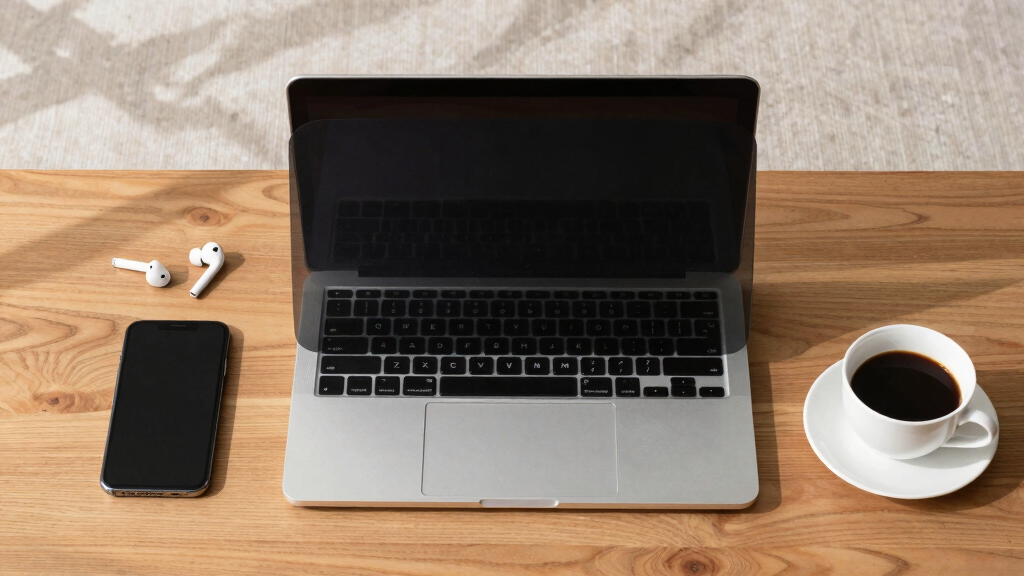

This guide walks you through the process of installing a privacy screen filter on your laptop. It is suitable for users comfortable with basic tech handling. Installing a privacy filter helps keep your screen content private in public or shared spaces, preventing side-angle viewing. The task takes about 15 to 30 minutes depending on your familiarity with small adjustments and screen cleaning.

Get privacy and security gear delivered free with Prime
- Fast, free delivery on millions of items
- Prime Video, Amazon Music and more included
- Member-only deals all year

SightPro Magnetic Laptop Privacy Screen 14 Inch 16:10
- ✔ Filter Dimensions: Width: 11 15/16" (304 mm), Height: 7 1/2" (190 mm), Diagonal: 14.1" (358.14 mm)
- ✔ Compatibility: Lenovo, HP, Dell, Acer, Asus, Samsung, and others (verify measurements)

SightPro Magnetic Laptop Privacy Screen 14 Inch 16:9
- ✔ Dimensions: 12 3/16" x 6 7/8" (310 mm x 175 mm)
- ✔ Features: Anti-Spy, Magnetic, UV & Blue Light Reduction

Magicmoon 15.6" Privacy Screen Protector, Anti-Spy/Glare Film
- ✔ Dimensions: Width: 13 9/16" (344mm), Height: 7 5/8" (194mm)
- ✔ Blue Light Block: 30%
- ✔ Blue Light Range: 380-495nm
Difficulty: Intermediate | Time: 15-30 minutes
What You’ll Need
Tools & Materials:
- Privacy screen filter suitable for your laptop size
- Microfiber cloth
- Isopropyl alcohol or screen cleaning wipe
- Optional: adhesive strips or mounting kit provided with the filter
Knowledge:
- Basic understanding of your laptop screen dimensions
- Familiarity with handling delicate screen surfaces
Measure your screen size accurately before purchasing the filter. Ensure compatibility with your laptop model. Have a clean, dust-free workspace to prevent debris from sticking under the filter.
SightPro Magnetic Laptop Privacy Screen 14 Inch 16:10
<p>This pick stands out for its <strong>magnetic snap-on design</strong>, making it effortless to attach or remove, ideal for users who frequently switch between privacy and open work. It offers <strong>superior side-view privacy</strong> for 14-inch laptops with a 16:10 aspect ratio, making it suitable for professionals handling sensitive data. Compared with the other SightPro model, it is less optimized for touchscreens but compensates with broad compatibility and included accessories like a webcam cover. The main tradeoff is that it doesn’t block visibility directly behind you, which might be a concern in highly open environments.</p>
Pros:
- Easy magnetic snap-on installation
- Excellent side-view privacy
- Includes webcam cover and cleaning cloths
- Compatible with multiple brands
Cons:
- Not optimized for touchscreens
- Requires dimension verification before purchase
- Does not block directly behind the user
Best for: Professionals who need quick, secure privacy on 14-inch laptops with 16:10 screens and value easy installation.
Not ideal for: Users with touchscreen laptops or those who need privacy from directly behind them.
Bottom line: A versatile, easy-to-use option ideal for quick privacy on 14-inch, 16:10 laptops, with minor limitations for touchscreens.
“A versatile, easy-to-use option ideal for quick privacy on 14-inch, 16:10 laptops, with minor limitations for touchscreens.”
SightPro Magnetic Laptop Privacy Screen 14 Inch 16:9
<p>This model excels for users prioritizing <strong>side-view privacy</strong> combined with <strong>UV and blue light reduction</strong>, making it a strong choice for extended use and travel. Its magnetic attachment is simple, and its <strong>glossy and matte options</strong> cater to different lighting conditions. Compared to the 16:10 version, it offers additional eye protection features, but it shares similar limitations in not being touchscreen optimized. Its dimensions are tailored for 14-inch screens with a 16:9 aspect ratio, requiring careful measurement verification to ensure fit.</p>
Pros:
- Magnetic attachment and removal
- Excellent privacy from side views
- UV and blue light filtering
- Includes webcam cover and cleaning cloth
Cons:
- Not touchscreen compatible
- Requires dimension verification
- May not block behind view
Best for: Travelers and remote workers who want privacy and eye protection without hassle.
Not ideal for: Touchscreen users or those with non-standard screen sizes outside 14" 16:9.
Bottom line: A well-rounded choice for those seeking privacy and eye protection on 14-inch laptops with a 16:9 aspect ratio, with some limitations for touchscreen devices.
“A well-rounded choice for those seeking privacy and eye protection on 14-inch laptops with a 16:9 aspect ratio, with some limitations for touchscreen devices.”
Magicmoon 15.6" Privacy Screen Protector, Anti-Spy/Glare Film
<p>This privacy screen is tailored for users with 15.6-inch widescreen laptops who want <strong>effective side-view privacy</strong> and <strong>blue light reduction</strong>. Its straightforward slide-on or mounted installation makes it suitable for quick setup, and it provides <strong>dust and scratch protection</strong>. Compared to the SightPro models, it is less versatile in aspect ratio, fitting only 16:9 screens, but it compensates with a focus on eye health, reducing blue light by 30% and filtering a broad range of wavelengths. Its main drawback is that it is not compatible with touchscreen laptops, and precise measurement is required for proper fit.</p>
Pros:
- Provides effective side-view privacy
- Reduces blue light to protect eyes
- Easy slide-on/off installation
- Protects screen from dust and scratches
Cons:
- Not compatible with touchscreens
- Requires precise measurement
- Limited to 16:9 aspect ratio
Best for: Users with 15.6-inch, 16:9 aspect ratio laptops who prioritize blue light filtering and dust protection.
Not ideal for: Touchscreen users or those with non-16:9 screens.
Bottom line: A solid choice for larger, 15.6-inch laptops focused on blue light filtering and dust protection, with some limitations in compatibility.
“A solid choice for larger, 15.6-inch laptops focused on blue light filtering and dust protection, with some limitations in compatibility.”
As an Amazon Associate we earn from qualifying purchases.
Before You Start
Power off your laptop and unplug it from any power source. Work in a clean, well-lit area. Avoid installing the filter in dusty or windy conditions to prevent particles from getting trapped under the filter.
Step-by-Step Instructions
Step 1: Measure your laptop screen
Use a ruler or tape measure to determine the width and height of your screen in inches or centimeters. Write down these measurements.
Tip: Check your laptop model specifications for screen size if available, to confirm measurements match the filter size.
Check: Measurements match the size of the privacy filter you purchased, ensuring proper fit.
Step 2: Clean the laptop screen
Use a microfiber cloth dampened with a small amount of isopropyl alcohol or a screen cleaning wipe to thoroughly clean your screen. Remove all fingerprints, dust, and smudges.
Tip: Avoid using harsh chemicals or abrasive cloths to prevent screen damage.
Check: The screen surface is free of dust, smudges, and streaks, providing a clear view and good adhesion.
Step 3: Align the privacy screen filter
Hold the filter above your screen, aligning it with the edges and cutouts (such as webcam or sensors). Confirm the size and position before attaching.
Tip: Use the packaging or included mounting guides if provided to ensure precise alignment.
Check: The filter is correctly aligned with your screen edges and cutouts, with no overhang or misalignment.
Step 4: Attach the privacy screen filter
If your filter uses adhesive strips or mounting brackets, carefully follow the manufacturer’s instructions to secure it. For static-cling filters, gently press it onto the screen, starting from one edge and smoothing outward to avoid air bubbles.
Tip: Work slowly to avoid trapping air bubbles or dust under the filter. Use a soft cloth to smooth out wrinkles or bubbles.
Check: The filter is firmly attached with no significant gaps, bubbles, or dust underneath, and covers the screen properly.
Step 5: Test the privacy filter
Turn on your laptop and view the screen from different side angles, approximately 30-60 degrees. Check that the display appears clear from straight on and dark or obscured from the sides.
Tip: Use a friend or colleague to view the screen from different angles for better testing.
Check: The screen is clearly visible only when viewed head-on, with side angles showing a darkened or unreadable display.
Common Mistakes to Avoid
- Installing the filter with misaligned edges or cutouts — Double-check measurements and alignment before attaching. Use guides or markings if available.
- Not cleaning the screen properly before installation — Thoroughly clean with a microfiber cloth and appropriate cleaner to ensure adhesion and clear viewing.
- Using excessive force when attaching the filter — Handle gently and follow the attachment instructions carefully to avoid damaging the filter or screen.
Troubleshooting
Problem: The filter does not stick properly or falls off
Solution: Re-clean the screen and filter surface. Ensure the surface is dry and free of dust before reapplying.
Problem: The display appears blurry or distorted after installation
Solution: Check that the filter is correctly aligned and not pressing on the screen unevenly. Remove and reattach if necessary.
Problem: Side viewing is still visible or not dark enough
Solution: Verify the filter’s specifications for your screen size and angle. Consider a higher-quality or different privacy filter.
What Success Looks Like
The installed privacy filter blocks side views, making the screen unreadable at angles greater than 30 degrees while remaining clear when viewed straight on. The filter is securely attached with no air bubbles or dust underneath.
Next Steps
Regularly clean the filter with a microfiber cloth to maintain clarity. Store the filter safely if removing for extended periods. Replace the filter if it becomes scratched or damaged. Use the privacy filter whenever working in public or shared spaces for increased security.
Frequently Asked Questions
Can I remove and reattach the privacy filter later?
Yes, if your filter uses static cling or reusable adhesive, you can remove and reattach it without damage. Follow the manufacturer’s instructions for best results.
Will the privacy filter affect my screen’s color or brightness?
Some filters may slightly dim or alter the display’s color. Choose a high-quality filter designed for minimal impact on image quality.
Is a privacy filter compatible with touchscreen laptops?
Many privacy filters are designed to be compatible with touchscreens. Verify the product specifications before purchase to ensure compatibility.
Halloween Picks
halloween
As an affiliate, we earn on qualifying purchases.