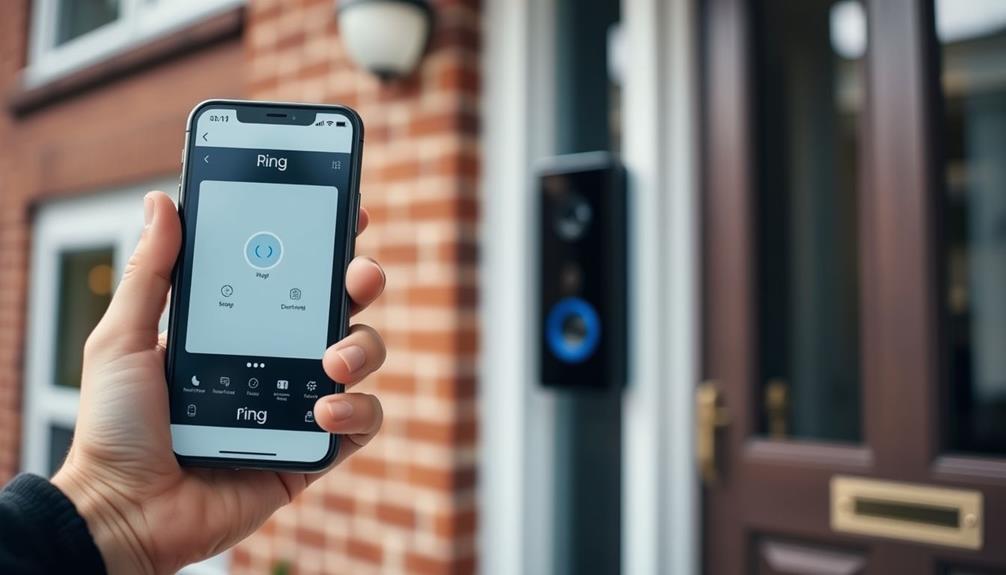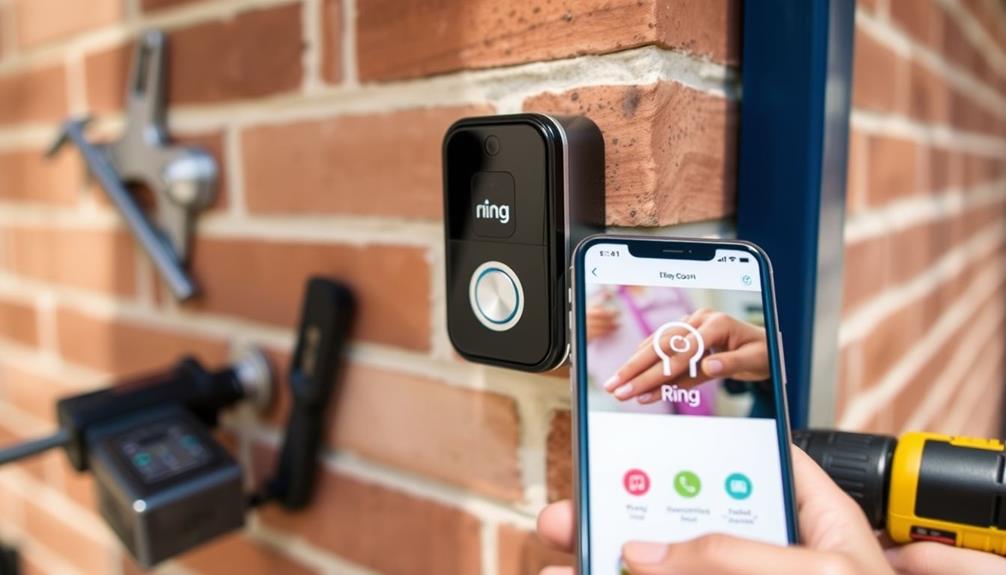
To diagnose Wi-Fi issues causing Ring video lag, start by testing your internet speed and comparing it to your plan to spot any drops. Check your device’s signal strength in the Ring app and reposition your camera closer to the router if needed. Reboot your router and camera to clear temporary glitches, and reduce network congestion by limiting connected devices. External interference from walls or electronics can affect signals—if you continue exploring, you’ll find ways to optimize your setup further.
Key Takeaways
- Check the Ring app for signal strength and ensure the device is close to the Wi-Fi router.
- Conduct speed tests to verify actual internet speeds match your plan and identify potential bottlenecks.
- Use a Wi-Fi analyzer to detect interference from other networks, electronics, or obstacles affecting signal quality.
- Restart your router and devices regularly to clear temporary glitches and improve connection stability.
- Optimize placement of your router, extenders, and Ring device to minimize obstructions and enhance signal strength.
Checking Your Internet Speed and Bandwidth

Have you ever noticed your Wi‑Fi feels slow or unreliable? To diagnose this, start with bandwidth monitoring and speed testing. Bandwidth monitoring helps you see how much data your network handles at peak times, revealing if your connection is overburdened. Speed testing measures your actual download and upload speeds, showing whether your internet plan meets your needs. Run these tests using trusted apps or websites to get accurate results. If your speeds are substantially lower than what your provider promises, it’s a sign to troubleshoot further or contact your ISP. Regularly checking your internet speed and monitoring bandwidth can help identify issues early, ensuring your Ring devices work smoothly and prevent lag during vital moments. Additionally, staying informed about cybersecurity trends can help protect your network from threats that cause interruptions.
Verifying Ring Device Signal Strength
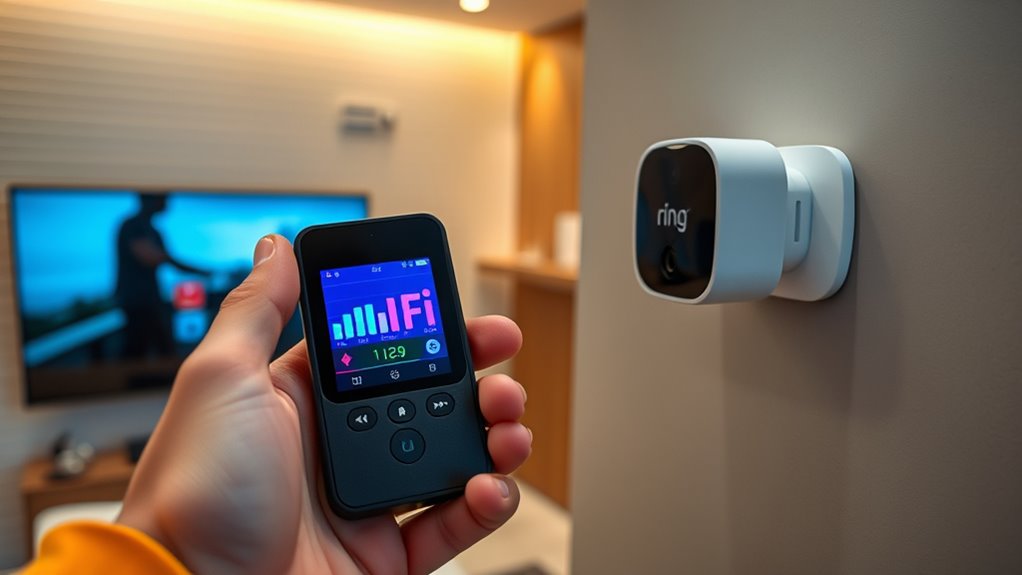
After checking your internet speed and bandwidth, it’s important to verify your Ring device’s signal strength to guarantee it’s connected efficiently. Weak signals can cause video lag or interruptions. Start by using the Ring app to check the signal status; a poor reading indicates your device isn’t getting a strong connection. Signal interference from other electronics, thick walls, or metal objects can weaken the connection, so consider adjusting your device placement. Position your Ring camera closer to your Wi-Fi router, avoiding areas with many electronic devices or obstructions. Ensuring a clear line of sight and minimizing interference improves signal strength. Regularly verifying your device’s connection helps maintain smooth video performance and reduces lag issues caused by weak or unstable signals. Incorporating automation’s role in business intelligence can help monitor and optimize your network performance proactively.
Rebooting Your Router and Ring Camera
Wondering if a simple restart could resolve your Wi-Fi issues? Restarting your router and Ring camera is a quick fix that often improves connection stability. Before doing so, check your router placement—ensure it’s in a central, open location away from interference to optimize signal strength. Reboot both devices by unplugging them, waiting about 30 seconds, then plugging them back in. This resets the network connection and can clear temporary glitches. While doing this, review your network security settings to confirm your Wi-Fi isn’t overly restricted, which could hinder device communication. Rebooting helps refresh the connection, potentially reducing lag and improving video quality. Regular reboots also support a more secure network environment by applying updates and resetting any compromised sessions. Additionally, maintaining good Wi-Fi health through proper placement and updates can help sustain a reliable connection for your devices.
Assessing Wi-Fi Network Congestion

If rebooting your router didn’t resolve your Wi-Fi issues, the next step is to evaluate network congestion. Too many devices sharing the same network can cause lag and affect device compatibility, especially with wireless interference. Use a Wi-Fi analyzer to see how many devices are connected and their activity levels. High traffic can strain your bandwidth, making your Ring camera lag. To reduce congestion, disconnect unnecessary devices and prioritize critical ones. Keep in mind that some devices might interfere with each other, worsening the situation. Here’s a quick overview:
| Device | Activity Level |
|---|---|
| Smartphone | High |
| Smart TV | Medium |
| Laptop | Low |
Reducing device load can notably improve your camera’s performance. Additionally, understanding Kia Tuning options can help optimize your vehicle’s electronics, ensuring stable performance that minimizes interference with your Wi-Fi network.
Moving Your Router Closer to the Camera
Moving your router closer to the camera can considerably improve your Wi-Fi connection by reducing signal loss and interference. Proper device placement minimizes obstacles like walls or furniture that weaken the signal, ensuring a stronger, more reliable connection. When your router is near the camera, it lowers the chances of signal interference from other electronics or neighboring networks, which can cause lag or video disruptions. Keep the router in a central location, elevated, and free from physical barriers. Avoid placing it behind metal objects or near appliances that emit electromagnetic interference. By optimizing the router’s position, you enhance the signal strength directly at the camera, resulting in smoother video streaming and fewer lag issues. Proper device placement is a simple, effective step toward better Wi-Fi performance.
Updating Firmware and App Software

Updating your router’s firmware and the camera’s app software regularly guarantees you have the latest performance improvements and security patches. A firmware update for your router can fix bugs, enhance stability, and optimize connection quality, reducing lag during video streaming. Similarly, an app update for your Ring camera ensures compatibility with your device and improves overall functionality. To perform these updates, check your router’s admin panel or visit the manufacturer’s website for firmware releases. For the app, visit your app store and download the latest version. Keeping both your firmware and app software current minimizes glitches, improves connection reliability, and helps prevent lag issues that can disrupt your video feed. Regular updates are a simple yet effective step toward a comprehensive cybersecurity strategy and a smoother Ring camera experience.
Securing Your Wi-Fi Network From Interference
Interference from other electronic devices or neighboring Wi-Fi networks can weaken your signal and cause connection drops. To protect your network, reduce wireless interference by keeping devices like microwaves, cordless phones, and Bluetooth gadgets away from your router. Signal overlap occurs when multiple networks operate on the same or nearby channels, causing congestion. You can minimize this by choosing less crowded channels. Here’s a quick overview:
| Device Type | Common Causes | Prevention Tips |
|---|---|---|
| Microwave ovens | Operate on 2.4 GHz | Keep away from router |
| Bluetooth devices | Same frequency as Wi-Fi | Limit device use near router |
| Neighbor Wi-Fi | Signal overlap | Use less congested channels |
Additionally, utilizing wall organization solutions can help keep your space clear of clutter that might interfere with signal strength.
Optimizing Wi-Fi Channels for Better Performance
Choosing the right Wi-Fi channel can considerably improve your network’s speed and stability. If you experience lag or buffering, channel interference might be the culprit. Many routers automatically select a channel, but this isn’t always ideal, especially in crowded areas. To enhance frequency, use tools like Wi-Fi analyzers to identify less congested channels. Switching to a clearer channel reduces interference from neighboring networks, resulting in a more stable connection. For dual-band routers, prioritize the 5 GHz band, which typically offers less interference and more channels for better frequency optimization. Regularly checking your Wi-Fi environment and adjusting your channel settings helps maintain peak performance, ensuring your Ring Video streams smoothly without lag. Proper channel optimization can make a noticeable difference in your overall Wi-Fi experience. Additionally, understanding relationships – personality test concepts of network behavior can help you identify sources of interference and optimize device placement for better connectivity.
Using a Wi-Fi Extender or Mesh Network
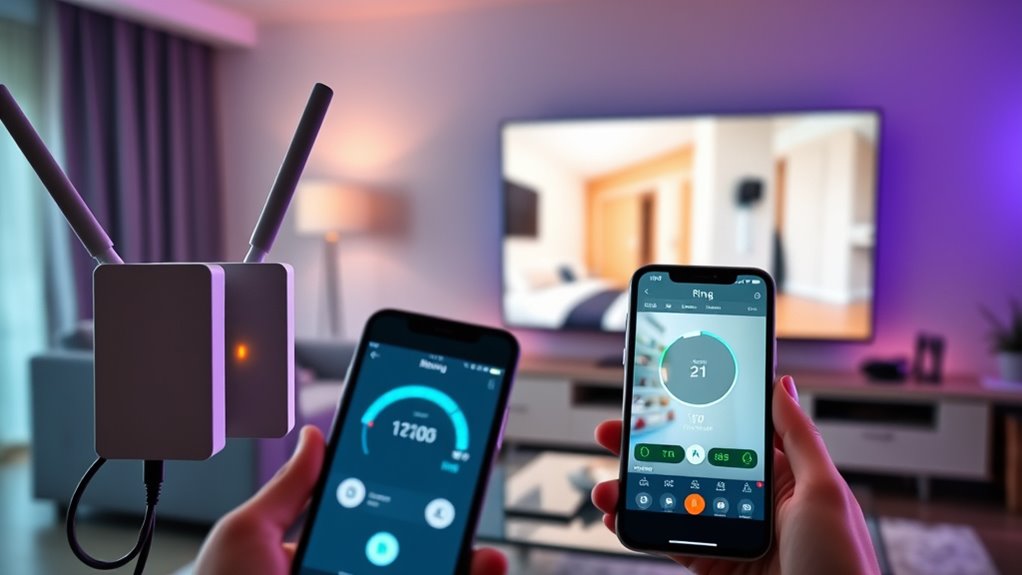
If your Wi-Fi signal struggles to reach certain areas of your home, deploying a Wi-Fi extender or switching to a mesh network can substantially improve coverage and stability. Extenders boost signals by repeating them, but they can sometimes be affected by wireless interference, which hampers performance. Mesh networks, on the other hand, create seamless coverage with multiple nodes working together, reducing dead zones. Signal boosting through these solutions helps ensure your Ring Video streams smoothly without lag. Position extenders or mesh nodes strategically—away from thick walls and electronic appliances—to minimize interference. This setup not only enhances coverage but also stabilizes your connection, providing a more reliable environment for your smart devices. Choosing the right solution depends on your home’s size and layout. Additionally, understanding paint sprayer performance metrics can help you select the most effective tools for your projects, ensuring optimal results.
Identifying External Factors Affecting Connection

Even after installing extenders or setting up a mesh network, external factors can still disrupt your Wi-Fi connection. Interference sources like neighboring Wi-Fi networks, Bluetooth devices, and cordless phones can weaken your signal. Environmental factors such as thick walls, metal objects, and electrical appliances can also cause issues. To identify these problems, consider the following table:
| External Factors | Potential Impact |
|---|---|
| Nearby Wi-Fi networks | Signal congestion and interference |
| Bluetooth devices | Signal overlap and disruption |
| Thick walls or metal objects | Signal attenuation |
| Electronics like microwaves | Temporary signal interference |
Additionally, wireless interference from various electronic devices can further degrade your Wi-Fi performance.
Frequently Asked Questions
How Can I Test My Wi-Fi Connection’s Stability Over Time?
To test your Wi-Fi connection’s stability over time, you should monitor your network regularly. Check for network congestion during peak hours and see if your connection drops or slows down. Use tools like speed tests and network analyzers to identify device interference and signal fluctuations. Keep an eye on your devices and their impact on your Wi-Fi, ensuring a consistent connection for your Ring video and other activities.
What Specific Router Settings Should I Adjust for Optimal Ring Performance?
Ever dreamed of turning your router into a superhero? Start by tweaking your router settings for Ring’s best performance. Enable Quality of Service (QoS) to prioritize your camera traffic, disable unnecessary features, and make sure your router security is tight to prevent interference. Don’t forget firmware updates—they’re like vitamins for your router, keeping it fit and fast. Adjusting these settings keeps your Ring video smooth and lag-free, no cape required.
Are There Particular Wi-Fi Frequencies Better Suited for Ring Cameras?
You should consider using the 5 GHz Wi-Fi frequency for your Ring cameras, as it generally offers faster speeds and less interference than 2.4 GHz. This boost in signal strength helps guarantee a more stable connection, reducing lag and buffering. Keep in mind, though, that 5 GHz has a shorter range, so position your router closer to your cameras for ideal performance.
How Do I Identify if My ISP Is Throttling My Connection During Video Streaming?
If you suspect ISP throttling during video streaming, start by monitoring your connection speed with a test like Speedtest.net. If speeds drop substantially during streaming, network congestion or throttling might be the cause. You can also contact your ISP to ask if they’re limiting bandwidth or check for data caps. Using a VPN can help determine if throttling occurs, as it masks your activity from your ISP.
Can I Use Power Over Ethernet (Poe) to Improve Video Lag Issues?
You can consider Ethernet alternatives like Power over Ethernet (PoE) to improve video lag issues. PoE uses power solutions combined with wired Ethernet connections, providing a more stable and reliable network compared to Wi-Fi. By connecting your Ring device via PoE, you reduce interference and network congestion, leading to smoother video streaming. This setup is especially helpful if Wi-Fi signals are weak or inconsistent, ensuring better performance and less lag.
Conclusion
Sometimes, fixing Ring video lag isn’t about upgrading to the latest tech. You might just need to sit back and realize that your Wi-Fi’s own quirks are the real culprits. Ironically, the more you tinker and reset, the more you might overlook the simple truth: good connection often comes down to patience and understanding, not just hardware. So, next time your footage stutters, remember, sometimes the best fix is a little less fuss and a little more faith.