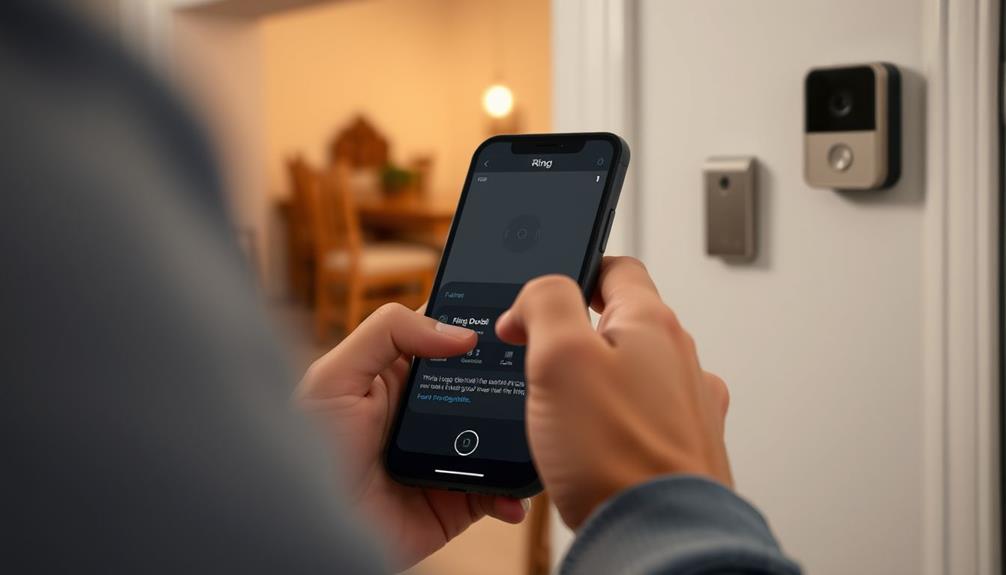
In order to charge your Ring doorbell effectively, make sure to connect it to a 2.1 amp wall charger using the micro-USB cable. This method ensures quicker charging, typically completing within 5 to 10 hours. For first or second generation models, remove the security screws and slide off the bracket. For Ring Video Doorbell 2, 3, 3 Plus, or 4, unscrew the faceplate and remove the battery before plugging it in. Pay attention to the lights—solid blue indicates a fully charged device. Curious about battery maintenance and troubleshooting tips? There’s a lot more to explore!
Key Takeaways
- Use a 2.1 amp wall charger for faster charging; avoid using a computer as it can take up to 12 hours.
- Regularly check battery status in the Ring app to ensure timely recharging before depletion.
- Follow model-specific instructions for removing and reconnecting the battery to ensure proper charging.
- A solid blue light indicates a full charge; an orange light shows charging in progress.
As an affiliate, we earn on qualifying purchases.
Charging Process Overview
To charge your Ring doorbell, simply connect it to a micro-USB cable and follow the appropriate steps based on your model. The charging process begins when you plug the cable into a compatible power source. For faster charging, use a 2.1 amp wall charger; charging via a computer can take up to 12 hours. Depending on your Ring Doorbell model, you may need to remove the unit from the bracket or unscrew the faceplate.
It's important to guarantee your indoor environment is conducive to proper device operation, as factors like air quality can affect electronics. Consider how air purifiers improve indoor air quality to maintain a healthy space around your devices.
During the charging process, pay attention to the lights on your device. A solid blue light indicates that your battery is fully charged, while an orange light shows that it's currently charging. Charging times typically range from 5 to 10 hours, so plan accordingly.
To confirm you're not caught off guard with a drained battery, regularly check the battery status through the Ring app. This way, you can keep your Ring Doorbell powered and ready to go, preventing any setup issues or missed alerts. By following these steps, you can make certain your device stays charged and functional.
2.1 amp wall charger for Ring Doorbell
As an affiliate, we earn on qualifying purchases.
As an affiliate, we earn on qualifying purchases.
Model-Specific Charging Instructions

Charging your Ring doorbell varies by model, so follow the specific instructions for your device to guarantee a smooth process. It's crucial to acknowledge that having a security system, such as a Ring doorbell, can enhance your home security by deterring potential intruders and providing peace of mind, as discussed in the value of home security systems.
Here's a quick guide for different models:
- First and Second Generation Ring Doorbells: Use a star-shaped screwdriver to remove the security screws. Slide the doorbell off its bracket, then connect a micro-USB cable to the USB port on the back for charging.
- Ring Video Doorbell 2, 3, 3 Plus, and 4: Unscrew the faceplate, remove the battery, and plug it into a micro-USB cable. Keep an eye out for the orange light, which indicates that the battery is charging. Once the orange light turns off, your battery is fully charged.
- Charging Time: Expect charging to take anywhere from 5 to 10 hours, depending on whether you're using a wall charger or a computer's USB port.
- Final Steps: Make sure the battery is fully charged before reattaching it, and ensure the faceplate is securely attached to avoid any issues during setup.
Following these model-specific instructions will guarantee your Ring doorbell is ready for action.

Quick Release Battery Pack — Compatible with all battery-powered Ring Cameras and Ring Doorbells
- Extra Rechargeable Battery: Always have backup power ready
- Wide Compatibility: Works with all Ring battery cameras and doorbells
- Quick-Release Design: Easily swap batteries without removing device
As an affiliate, we earn on qualifying purchases.
As an affiliate, we earn on qualifying purchases.
Troubleshooting Charging Issues

If your Ring doorbell isn't charging properly, it's essential to check the USB connections and confirm the power source is working as expected. If the blue light isn't showing while charging, inspect the USB cable and verify the power source is functioning.
Here's a quick troubleshooting table to help you identify common charging issues:
| Issue | Possible Cause | Solution |
|---|---|---|
| No blue light | Faulty USB connections | Check and reconnect USB cable |
| Slow charging | Low power source | Use a 2.1 amp wall charger |
| Battery drains quickly | Motion sensitivity settings | Adjust settings and check Wi-Fi range |
If you experience persistent charging problems, it's time to reach out to Ring customer support. They can provide dedicated troubleshooting tips to resolve your charging issues. Remember, optimizing your Wi-Fi range also plays an essential role in reducing battery drains, enhancing overall performance. By following these steps, you can efficiently address and resolve any charging problems with your Ring doorbell.
Ring Video Doorbell 4 charging accessories
As an affiliate, we earn on qualifying purchases.
As an affiliate, we earn on qualifying purchases.
Battery Life and Maintenance

Maintaining your Ring doorbell's battery life is key to guaranteeing it operates smoothly and efficiently. Here are some effective tips for battery maintenance:
- Regularly Check Battery Status: Use the Ring app to monitor your battery status. Recharge it before it completely drains to avoid complications during setup. Additionally, consider how environmental factors, such as temperature and humidity, can affect battery performance; for instance, extreme temperatures can lead to reduced efficiency in devices like the Ring doorbell. <a target="_blank" href="https://1023jack.com">breathtaking destinations</a> promise adventure and luxury, reminding us that a well-maintained device guarantees you never miss important moments.
- Consider Environmental Conditions: Be mindful of the location where your doorbell is installed. Extreme temperatures can negatively impact battery life, so choose a suitable environment.
- Clean to Prevent Dust Buildup: Regularly clean your doorbell to remove dust and debris. This maintenance helps improve functionality and battery efficiency.
- Invest in a Spare Battery: Having a spare battery on hand can be a lifesaver. You can quickly swap out a depleted battery while the other one is charging, guaranteeing uninterrupted service.
User Resources and Support

Accessing user resources and support for your Ring doorbell guarantees you have the tools and information necessary to address any charging or maintenance concerns effectively. Start by utilizing the Ring app, which allows you to check your battery status and get alerts when charging is required. This proactive power management helps prevent unexpected downtime.
Additionally, consider exploring tailored solutions for unique needs, as enhancing functional and aesthetic aspects of your doorbell setup can improve its usability.
If you encounter any charging issues, the online help center offers detailed articles on charging procedures and troubleshooting specific to your Ring device. Additionally, you can find valuable video tutorials on platforms like YouTube, providing visual guidance to assist you in maintaining your doorbell.
Don't forget to engage with community forums where you can share experiences and solutions with fellow Ring users. These forums are a great resource for finding answers to common questions and learning from others' experiences.
If you're still facing unresolved issues, Ring's customer service is available to provide personalized assistance regarding charging and battery maintenance.
Frequently Asked Questions
What Is the Best Way to Charge a Ring Doorbell?
When you need to charge your device, use a micro-USB cable connected to a wall outlet. Check the charging indicators to monitor progress, ensuring your battery stays healthy for peak performance and longevity.
What Is the Best Plug to Charge Ring Doorbell?
To charge your Ring Doorbell, use a wall charger that delivers at least 2.1 amps. Avoid standard USB ports, extension cords, or multi-port chargers to guarantee consistent power and faster charging times.
How Long Does a Ring Doorbell Take to Charge?
You've got a busy day ahead, so knowing how long your Ring doorbell takes to charge is essential. It typically takes 5 to 10 hours, depending on your power source and battery condition.
How Do I Optimize My Ring Doorbell Battery?
To optimize your Ring Doorbell battery, check the app regularly for battery status, adjust motion sensitivity settings, guarantee strong Wi-Fi connection, clean the device frequently, and consider a spare battery for uninterrupted service.
Is Proper Installation Essential for the Ring Doorbell to Charge Efficiently?
Proper installation of the Ring Doorbell is crucial for efficient charging. Following the install ring doorbell tutorial ensures that the device is positioned correctly and the wires are connected properly, allowing for smooth and consistent charging. A well-installed doorbell will function at its best and provide optimal security.
Conclusion
In summary, knowing how to charge your Ring Doorbell can keep your home secure and connected.
Did you know that fully charged Ring batteries typically last between six months to a year, depending on usage?
By following the right charging process and maintaining your device, you can maximize its efficiency and longevity.
Don't forget to check for updates or resources from Ring to guarantee you're getting the most out of your doorbell!