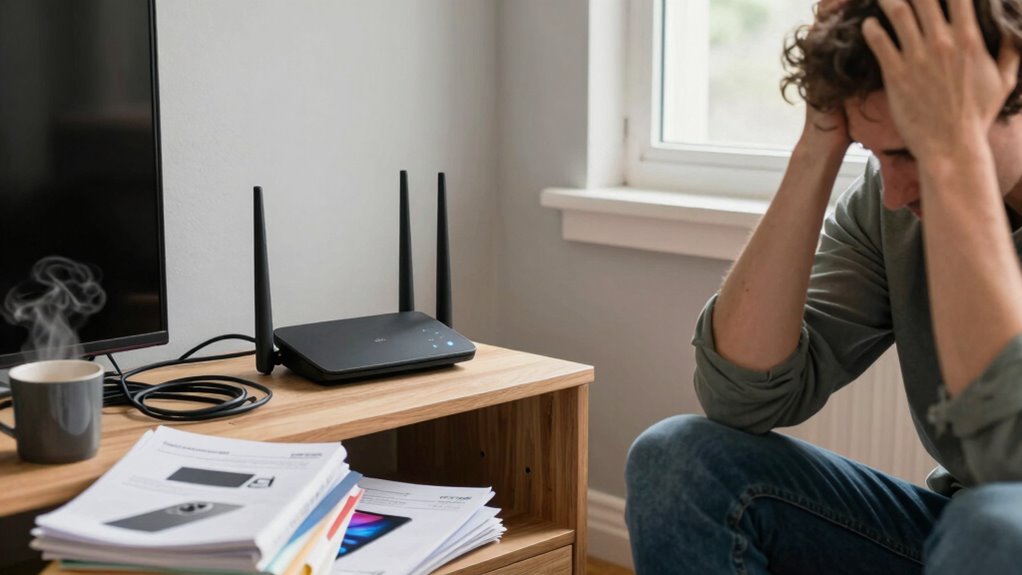
When troubleshooting Wi-Fi, start by checking your router’s placement instead of panicking. Poor placement can cause weak signals and dead zones, which are often the main culprits behind slow or dropped connections. Moving the router to a central, elevated spot away from interference sources like cordless phones or metal objects can improve performance quickly. If you want to learn how simple adjustments can fix common issues and boost your signal, keep exploring these tips.

Get privacy and security gear delivered free with Prime
- Fast, free delivery on millions of items
- Prime Video, Amazon Music and more included
- Member-only deals all year
Key Takeaways
- Proper router placement can resolve many connectivity issues without complex troubleshooting.
- Moving the router to an optimal spot often improves signal strength and reduces disconnections.
- Interference sources and obstacles are more effectively addressed through placement adjustments.
- Troubleshooting should focus on placement first to prevent unnecessary resets or support calls.
- Simple repositioning can significantly enhance Wi-Fi performance, saving time and effort.
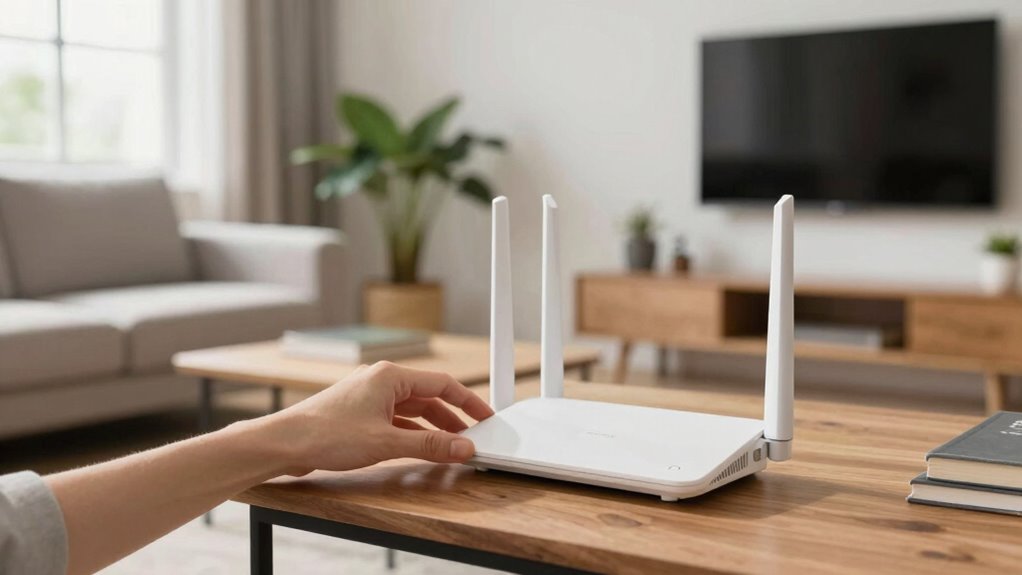
Dealing with Wi-Fi issues can be frustrating, but many problems have simple solutions. The first step often isn’t rushing to reset your router or calling tech support — it’s checking your router placement. Where you position your router can dramatically impact your Wi-Fi performance. Place it in a central location within your home, ideally on a high shelf, away from walls and obstructions. Avoid hiding it inside cabinets or behind furniture, as these can weaken signals. Keep it elevated and free from clutter to maximize coverage. When your router isn’t in an optimal spot, parts of your home might experience weak signals or dead zones, making what seems like a connectivity issue actually a placement problem.
Interference sources are another key consideration. Many household items emit signals that can interfere with Wi-Fi. Common culprits include cordless phones, baby monitors, microwave ovens, and Bluetooth devices. Keep your router away from these devices, especially those operating on similar frequencies like 2.4 GHz. Walls, metal objects, and appliances can also disrupt signals, so avoid placing your router near metal filing cabinets or large mirrors. Sometimes, even neighboring Wi-Fi networks can cause interference if they overlap on the same channels. Adjusting your router’s channel settings can help mitigate this problem, but first, you should confirm that your router is positioned away from interference sources for the best results.
Many Wi-Fi problems are caused not by faulty equipment but by poor placement and interference. When you start troubleshooting, shift your focus to how your router is situated. Small adjustments to its location can lead to significant improvements in signal strength and stability. If you’re experiencing slow speeds or frequent disconnections, try relocating your router to a more central, open space, and turn off or move away from potential interference sources. Consider doing a quick speed test before and after repositioning to see if your efforts pay off. If problems persist, it’s still worth checking for interference or channel congestion, but initially, the fix might be as simple as where you place your router. Proper router placement can make a substantial difference in your Wi-Fi experience. Additionally, understanding Wi-Fi interference sources and how they impact your network can further optimize your connection. Being aware of potential interference sources and their effects can help you avoid future issues. Recognizing signal strength variations across your home can also guide you in selecting the best router placement to maximize coverage.
As an affiliate, we earn on qualifying purchases.
Frequently Asked Questions
How Often Should I Update My Wi-Fi Router Firmware?
You should update your Wi-Fi router firmware at least once every few months to guarantee peak performance and security. Regular firmware updates fix bugs and improve connection stability. Remember, router placement impacts your Wi-Fi quality more than frequent updates, so position your router correctly first. Keep an eye on manufacturer notifications for firmware updates, and don’t delay installing them to protect your network and maintain fast, reliable Wi-Fi.
Can Using Multiple Routers Improve Wi-Fi Coverage?
Yes, using multiple routers can improve Wi-Fi coverage, especially with mesh networks or signal boosters. A mesh network seamlessly connects multiple routers, providing consistent coverage across large spaces. Signal boosters amplify your existing Wi-Fi signal, reducing dead zones. By strategically placing these devices, you guarantee stronger, more reliable connections throughout your home or office, eliminating frustration caused by weak signals and improving overall internet performance.
What’s the Best Way to Secure My Wi-Fi Network?
To secure your Wi-Fi network, you should use strong encryption protocols like WPA3 or WPA2 to protect your data. Additionally, create a complex, unique password that’s difficult for others to guess. Avoid common words or patterns, and update your password regularly. These steps help prevent unauthorized access, ensuring your network remains private and safe from potential threats.
How Do I Identify if Interference Is Affecting My Wi-Fi?
You can identify interference affecting your Wi-Fi by checking for signs of channel congestion and electronic interference. Use a Wi-Fi analyzer app to scan your environment and see if multiple networks are overlapping on the same channel. Also, look for electronic devices like microwaves or cordless phones that might cause interference. If you notice slow speeds or dropped connections when these devices are active, interference is likely impacting your Wi-Fi.
Is a Wi-Fi Extender Better Than Upgrading My Router?
A Wi-Fi extender isn’t always better than upgrading your router; in fact, 70% of signal issues stem from poor placement. You might see a boost in signal strength by optimizing your router’s placement first. Better placement ensures maximum coverage and speeds. Extenders can help if your router is outdated or can’t cover your entire space, but upgrading your router often offers a more reliable, long-term solution for improved network performance.
As an affiliate, we earn on qualifying purchases.
Conclusion
Think of your Wi-Fi like a lighthouse guiding ships through fog. When signals falter, it’s not the storm but the lighthouse’s position that needs adjusting. By starting with placement, you’re ensuring your signal shines bright and steady, rather than panicking and throwing everything into chaos. Remember, a calm, strategic approach clears the path just like a well-placed lighthouse, guiding your connection safely to shore. Sometimes, the fix is simpler than it seems—just shift your focus.
As an affiliate, we earn on qualifying purchases.
As an affiliate, we earn on qualifying purchases.
Fall Picks
fall essentials
As an affiliate, we earn on qualifying purchases.


