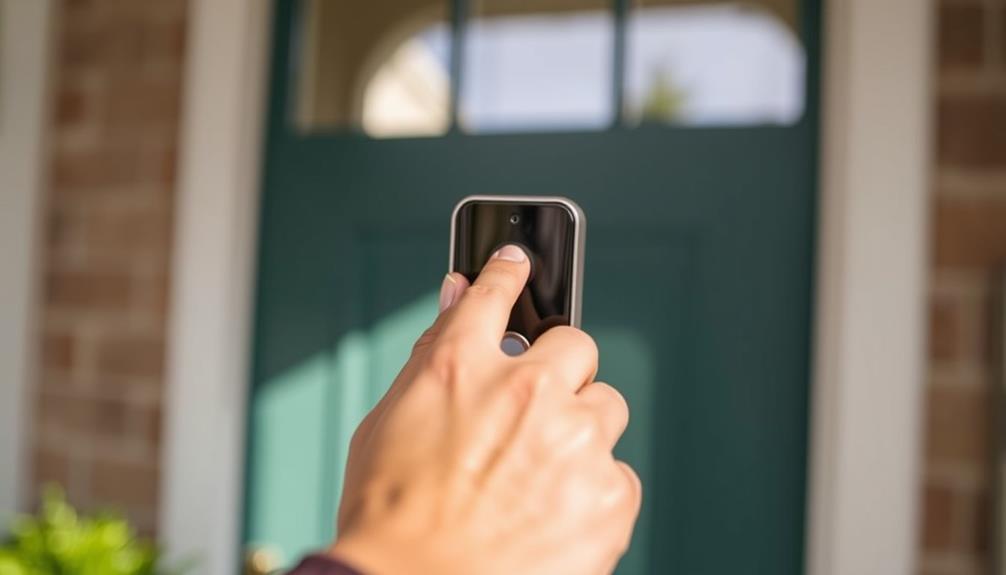

Privacy zones on Ring let you draw digital curtains around sensitive areas of your home to protect your privacy while maintaining security. You can easily set up and customize these zones through the app, adjusting their shape and size to cover specific spots like private yards or windows. Proper placement helps prevent unnecessary alerts and guarantees your privacy is respected. Keep exploring to learn how to optimize your privacy zones and balance security with privacy.
Key Takeaways
- Privacy zones allow you to block specific areas from camera recording to protect sensitive or private spaces.
- To create privacy zones, access device settings in the Ring app, then draw and customize zones over targeted areas.
- Adjust and resize zones using shape options and drag controls to ensure precise privacy coverage.
- Properly managing privacy zones helps reduce false alerts and enhances surveillance focus on essential activity.
- Regularly review and update zones to maintain privacy, security, and compliance with local laws.
Understanding the Purpose of Privacy Zones
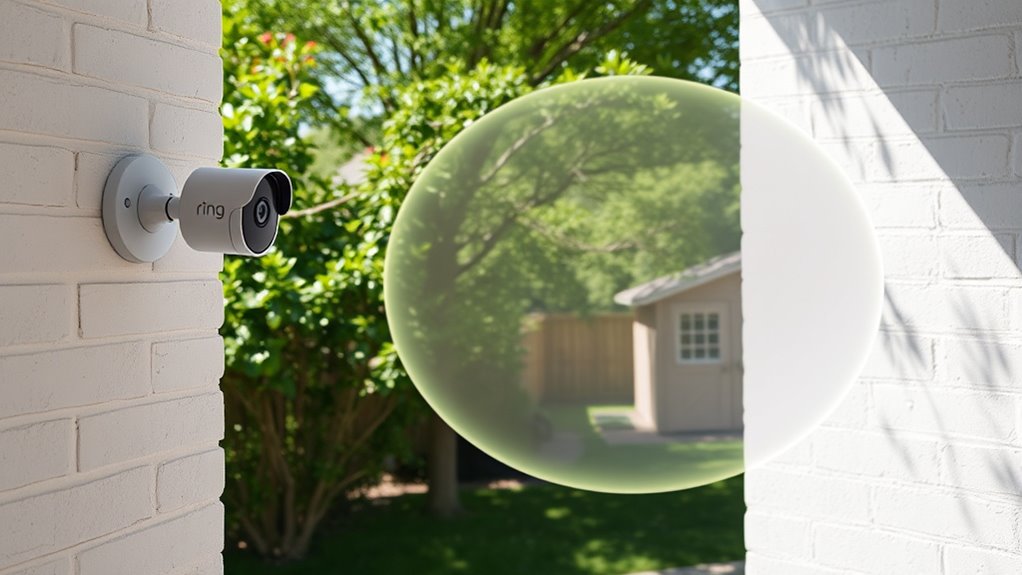
Privacy zones on Ring cameras serve to protect your personal space by allowing you to block out specific areas from being recorded. This feature helps address privacy concerns by giving you control over what the camera captures, ensuring that private or sensitive areas remain unrecorded. It’s especially useful if your camera faces neighbors’ properties or public spaces you prefer not to monitor. Legally, privacy zones can help you stay compliant with local laws and regulations that restrict video recording in certain areas. By setting these zones, you demonstrate responsible camera use and respect for others’ privacy rights. Additionally, security systems with privacy zones can deter potential intruders while preserving your privacy, providing a balanced approach to home security. Overall, privacy zones give you peace of mind, balancing security with privacy, and ensuring your surveillance aligns with both personal and legal boundaries.
How to Set Up Privacy Zones on Your Ring Device
Setting up privacy zones on your Ring device is a straightforward process that you can complete through the Ring app. First, open the app and select your device. Tap on “Device Settings,” then “Privacy Settings,” and choose “Create Privacy Zone.” Use your finger or mouse to draw the zone over areas you want to block from recording, considering camera angles to avoid blind spots. Adjust lighting if needed to guarantee clear visibility while maintaining privacy. Proper placement helps prevent accidental coverage of important areas. Keep in mind that color accuracy can influence how well you can identify objects within your privacy zones, ensuring that the zones are effective and precise. Here’s a visual guide:
| Step | Action | Tips |
|---|---|---|
| 1 | Open Ring app | Access your device settings |
| 2 | Select Privacy Settings | Find “Create Privacy Zone” |
| 3 | Draw zone | Cover areas with sensitive info |
| 4 | Adjust camera angles | Optimize for privacy |
| 5 | Confirm | Save your settings |
This process keeps your home secure yet private.
Customizing the Shape and Size of Privacy Zones

After creating a basic privacy zone, you can further tailor its effectiveness by customizing its shape and size. Privacy zone customization allows you to precisely control which parts of your camera’s view are protected, reducing unwanted footage. Using the zone shape adjustment feature, you can switch between different shapes—like rectangles or freeform polygons—to match your specific needs. Adjust the size by dragging the edges or corners of the zone, making it larger or smaller as needed. This flexibility guarantees you only block out sensitive or private areas, without sacrificing visibility elsewhere. Fine-tuning the zone shape and size offers additional control over your privacy preferences, ensuring your home’s surveillance respects your boundaries while maintaining security.
Managing Multiple Privacy Zones for Different Areas

Managing multiple privacy zones allows you to protect different areas of your property simultaneously, giving you greater control over your surveillance footage. By customizing each zone, you can adjust camera angles to focus on specific spots while safeguarding sensitive locations. This setup helps prevent unnecessary recording of private areas and enhances data encryption for secure footage storage. To keep track of your zones, consider this example:
| Zone Name | Camera Angle | Privacy Purpose |
|---|---|---|
| Front Yard | Wide view, adjustable | Public entrance |
| Backyard | Focused, narrow shot | Play area, garden |
| Side Alley | Limited, angled shot | Side access, privacy |
| Pool Area | Specific, restricted view | Swimming, relaxation |
Managing multiple zones effectively balances privacy with security, giving you peace of mind. Proper zone management ensures optimal privacy and security by customizing each zone to fit your needs.
Tips for Effective Privacy Zone Placement

To guarantee your privacy zones are effective, start by carefully evaluating which areas need protection and which can remain visible. Consider the camera angles to ensure sensitive spaces aren’t overlooked. When placing your zones, keep these tips in mind: 1. Focus on high-traffic areas like front doors or backyard patios. 2. Block views of windows or neighboring properties that reveal private moments. 3. Use sound alerts to notify you if someone enters the protected zone unexpectedly. 4. Adjust camera angles so that privacy zones cover only what’s necessary, avoiding blind spots. Additionally, consider the impact of sleep and mindfulness practices to maintain a clear and focused mindset when configuring your privacy settings.
Troubleshooting Common Privacy Zone Issues
If your privacy zones aren’t working as expected, start by adjusting the zone boundaries to better cover the areas you want to protect. Overlapping zones can cause confusion or missed coverage, so manage them carefully to avoid gaps or redundancy. Troubleshooting these issues helps make certain your privacy settings are effective and functioning properly. For optimal performance, ensure your camera placement and support solutions are aligned with your privacy needs.
Adjusting Zone Boundaries
When privacy zones don’t align as expected, adjusting the zone boundaries can often resolve the issue. To make precise privacy adjustments, start by accessing your Ring app’s zone settings. Visualize the zone boundaries as a flexible shape you can resize and move. Use these steps:
- Tap on the camera and select “Privacy Zones.”
- Drag the edges of the zone boundaries to cover only the desired area.
- Pinch or stretch the zone shape to refine its size.
- Save your changes, ensuring the zone covers the intended space.
- For added security, verify the authenticity of your device and app to ensure your privacy settings are properly managed security verification.
Managing Overlapping Zones
Overlapping privacy zones can create confusion and reduce the effectiveness of your camera’s privacy settings. Privacy overlap often leads to zone conflicts, where one zone unintentionally blocks or exposes areas you want protected. To manage this, review your zone boundaries carefully and adjust their positions to avoid overlaps. Use your Ring app to identify where zones intersect and modify their size or shape for clear separation. If conflicts persist, delete conflicting zones and recreate them with distinct boundaries. Keeping zones well-defined prevents unintended privacy breaches and ensures your camera accurately respects your privacy preferences. Regularly check your zones after updates or changes to maintain effective privacy management and avoid zone conflicts that compromise your privacy zones. Incorporating privacy zone management techniques can further optimize your setup.
Privacy Zones and Motion Detection: What You Need to Know
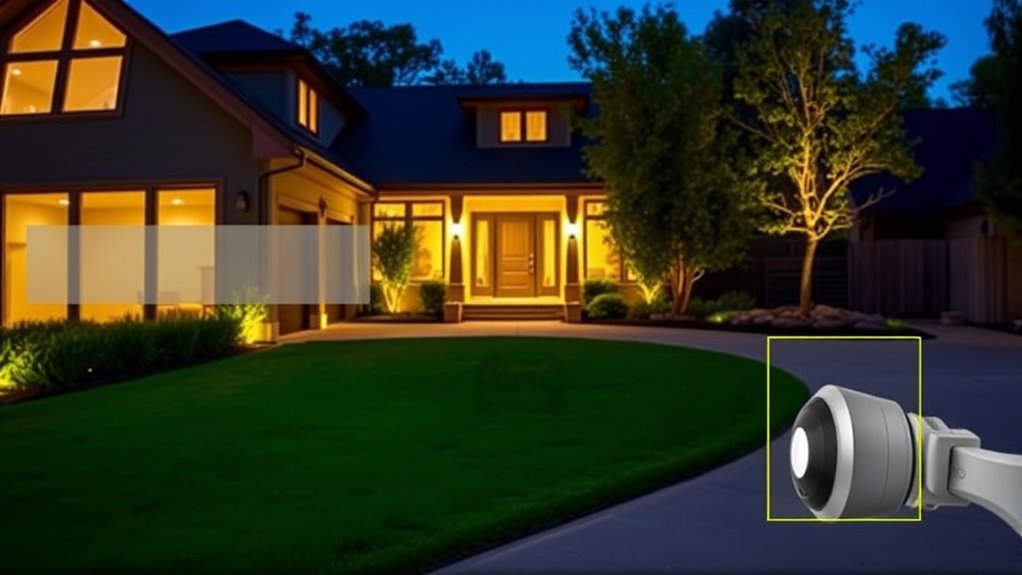
Privacy zones on Ring devices allow you to control where the camera records, but they can also impact motion detection accuracy. When you block out areas, the camera ignores motion there, which might prevent false alarms but also miss important activity. Keep in mind that encryption standards protect your footage, ensuring sensitive data remains secure. Data retention policies determine how long your recordings are stored, influencing your privacy management. Imagine these scenarios:
- You draw a privacy zone over your neighbor’s driveway, avoiding unnecessary alerts.
- You block out a busy street, reducing false motion triggers.
- Motion detection adjusts to focus only on your front yard, increasing accuracy.
- Data is securely encrypted, but retention periods limit how long footage stays accessible.
- Advances in smart security technology continue to enhance privacy controls while maintaining effective surveillance.
Balancing these factors helps you maintain privacy without sacrificing security.
Best Practices for Balancing Security and Privacy
Achieving the right balance between security and privacy with your Ring device requires intentional setup and ongoing adjustments. Start by customizing privacy zones to limit camera view to essential areas, reducing unnecessary data collection. Stay informed about privacy laws in your region to guarantee compliance and protect your rights. Enable data encryption features to secure footage both during transmission and storage, preventing unauthorized access. Regularly review your device’s settings and update firmware to patch security vulnerabilities. Share access thoughtfully and limit permissions to trusted users. Keep yourself educated on legal updates and best practices for digital privacy. Understanding cookie management options can also help you control data sharing and enhance your overall privacy strategy. By actively managing these aspects, you can maintain a secure home environment without compromising your privacy rights.
Frequently Asked Questions
Can Privacy Zones Be Temporarily Disabled?
You can temporarily disable privacy zones on your Ring device through privacy zone toggling. This feature allows you to quickly turn off privacy zones for a specific period, giving you full camera view when needed. To do this, access your Ring app, find the privacy settings, and toggle the privacy zones off. Remember, this temporary disablement helps you monitor areas without permanently altering your privacy setup.
Do Privacy Zones Affect Motion Alerts?
Imagine fine-tuning your home’s digital eyes; privacy zones can influence this delicate balance. They don’t block motion detection entirely but can limit where alerts appear, making your notifications more relevant. When you customize alerts, privacy zones help refine motion detection, ensuring you only get alerted for what truly matters. This way, you stay in control, enjoying a seamless blend of security and privacy without missing critical moments around your home.
Are Privacy Zones Compatible With All Ring Devices?
Privacy zones are not compatible with all Ring devices. You should check device compatibility before setting them up, as some models may lack this feature. The setup procedures vary depending on your device, but generally, you access the Ring app, select your device, and follow prompts to create privacy zones. This helps you customize privacy, but verify your specific Ring model supports these zones for seamless setup and effective privacy control.
How Secure Are Privacy Zones From Hacking?
You might wonder how secure privacy zones are from hacking. Ring uses encryption protocols to protect your video data, making it difficult for unauthorized access. While no system is completely invulnerable, Ring’s security measures help safeguard your privacy zones. Regularly updating your device’s firmware and strong passwords further minimize risks. Overall, Ring’s encryption and security protocols provide a solid layer of protection for your privacy zones against potential hacking attempts.
Can Privacy Zones Be Shared With Family Members?
You can share privacy zones with family members by managing permissions within your Ring app. This allows you to grant or restrict access, so only trusted people can view or adjust the zones. Using family sharing and permission management, you control who can see your privacy zones, ensuring your digital curtains stay secure. Just set up these sharing options in your app, and your family can enjoy monitoring while respecting your privacy.
Conclusion
Think of privacy zones as your digital curtains, drawing a boundary between your home and the outside world. When set up thoughtfully, they protect your privacy while keeping your security intact. By customizing and managing these zones, you create a safe space where you control what’s visible. Remember, like a well-tuned garden fence, the right privacy zones keep unwanted views out, so you can enjoy peace of mind without sacrificing security.