
TL;DR

Get privacy and security gear delivered free with Prime
- Fast, free delivery on millions of items
- Prime Video, Amazon Music and more included
- Member-only deals all year
A laptop privacy screen protector is a thin display filter that makes the screen harder to read from the side, often using tiny light-directing structures. It can help reduce casual shoulder surfing in shared spaces, but it does not block views from directly in front, secure files, or prevent photography. Check dimensions, attachment style, touchscreen support, and brightness trade-offs before buying.
The person beside you on the train may not be trying to snoop. They may simply glance up as your inbox lights the dim carriage. A laptop privacy screen protector makes that sideways glimpse harder, but it doesn’t put a digital lock on your files or hide the display from someone sitting across from you.
This guide explains what privacy screen protectors are, how their viewing-angle limits work, and what trade-offs to expect in brightness, clarity, and screen sharing. You’ll also get a practical checklist for choosing a filter that fits your actual laptop display, whether you work from airport lounges, a busy office, or a café table.
A laptop privacy filter reduces readability from side angles; someone directly in front may still see the screen.
Compare the filter’s dimensions and aspect ratio with the visible display, and check bezel and camera placement.
Expect some trade-off in brightness, color, or screen sharing; raising brightness can use more battery.
Choose attachment and touchscreen support to match how often you remove the filter and how you use your laptop.
Use the filter alongside screen locks and careful handling; it does not secure files or prevent photos.
What a Laptop Privacy Filter Can Hide From Side Views
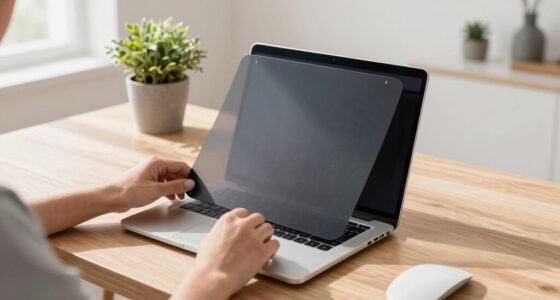
A laptop privacy filter is a thin filter placed over the display that limits how clearly people can see the screen from the sides. Many filters use micro-louver technology: tiny vertical structures guide light toward the viewer sitting in front, while the image looks dim or dark from off to the side. Think of narrow blinds on a bright window, only scaled down to the size of your display.
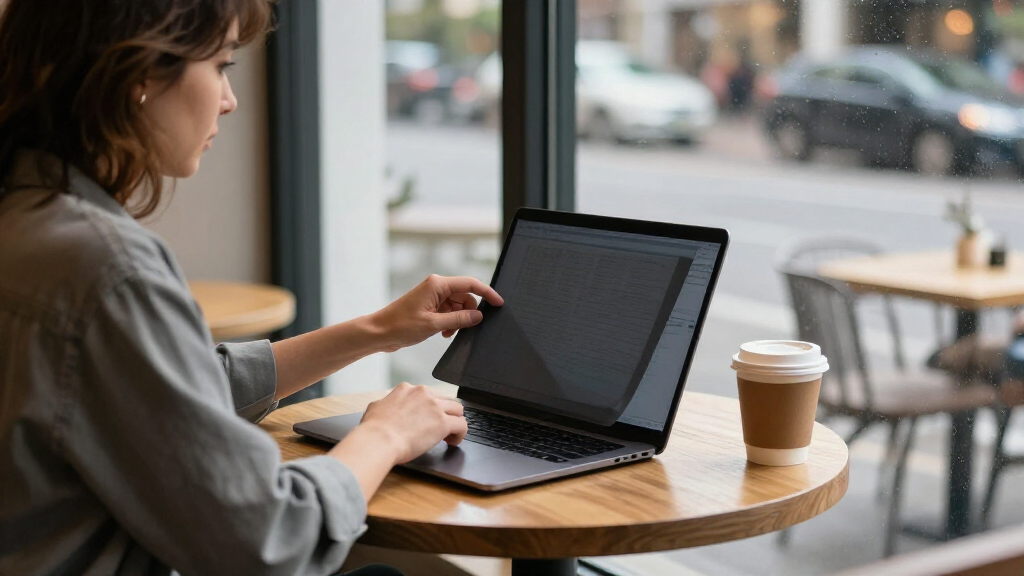
That can help when you’re reviewing a calendar on a crowded train or reading a customer record at a shared desk. Someone beside you may see a darkened screen instead of names and appointment notes. The filter reduces casual shoulder surfing; it does not guarantee that every angle or lighting condition will hide the contents.
Privacy screen protectors work through optics, not software. They do not encrypt your files, block screenshots, or prevent someone with a camera from taking a picture. If your colleague walks around and stands directly in front of your display, the filter generally won’t hide it from them.
So, what they are is a physical viewing-angle aid, not a complete privacy shield. In practical terms, it can make the person next to you on a plane less able to read your email while leaving your laptop’s normal apps and files unchanged. You still need screen locks and access controls to protect information when you step away.
Products Worth Considering

Blueair Signature SP1i Smart Air Purifier

Dyson V10 Konical Cordless Stick Vacuum

Samsung 75-Inch QLED Q7F Series Smart TV (2025)
As an affiliate, we earn on qualifying purchases.
See the Trade-Off Between Privacy, Brightness, and Sharing
A laptop privacy screen protector can make side views less readable, but that comes with trade-offs: the display may look dimmer, colors can shift, and a nearby coworker may struggle to follow your presentation. How much you notice depends on the filter, screen brightness, viewing position, and room lighting. A sunny seat by a café window can make an already dim display feel especially muddy.
That dimming matters because brightness is not just a comfort setting: it affects whether you can read fine text or judge colors reliably. Turning brightness up can recover some readability, but it uses more power and may shorten the time you can work unplugged. If you often work outdoors or edit images, test whether the filter leaves enough clarity for those tasks rather than assuming a brighter setting will solve everything.
Imagine editing a colorful slide deck in a bright office. A filter might help keep the person walking past your desk from reading the slide notes, yet the narrower view may frustrate the teammate sitting beside you. That changes how you share work: you may need to remove the filter, turn the laptop directly toward the colleague, or use a larger shared display. If you mostly work alone, this cost may be minor; if collaboration is routine, it can outweigh the privacy benefit.
| Feature | What you may notice | Useful when |
|---|---|---|
| Side-view privacy | Side angles appear darker or less clear | You work in cafés, trains, or shared offices |
| Brightness and color | The screen can look dimmer or less vivid | You can raise brightness without disrupting your work |
| Sharing angle | A person beside you may see less detail | You rarely share your display in person |
| Anti-glare finish | Reflections may look softer | You work under bright lights or near windows |
Anti-glare and privacy are separate features, even when a product combines them. A matte surface may soften reflections; a privacy filter restricts side viewing. Check which feature a maker actually lists. A matte finish may help with reflections but does not hide your screen from someone beside you, while a privacy filter can narrow the view without necessarily reducing glare. Consider the conditions you want to address before treating one feature as a substitute for the other.
Choose a Filter That Fits Your Screen and Daily Routine
The right filter matches your laptop’s actual screen dimensions and aspect ratio, as well as how you want to attach and remove it. A product labeled for a 14-inch laptop can still be the wrong shape for your display or its bezel. Measure the visible screen area and compare the maker’s compatibility details before ordering. A close fit matters because gaps or misplaced edges can leave part of the display exposed, while an oversized filter can interfere with the bezel or camera.
Picture unboxing a filter that looks wide enough but covers part of your webcam because the laptop has a thin bezel. That small mismatch can turn a simple purchase into a fiddly workday. Check the placement of the webcam, infrared camera, and ambient-light sensor, and look for cutouts or clear instructions that account for them. A blocked sensor may affect a feature you rely on, and a partly covered camera can make calls frustrating even if the screen itself is protected.
- Measure the display: Check the screen’s visible width, height, and aspect ratio rather than relying on the laptop’s advertised diagonal size alone. The diagonal describes overall screen size, not the shape or exact area a filter needs to cover.
- Match the attachment: Choose adhesive tabs for a more settled fit, slide-in holders for a removable overlay, or a magnetic design for frequent removal, if the laptop supports that style. Consider whether convenience for meetings is worth the risk of misplacing or scratching a filter you remove often.
- Confirm features: Check touchscreen support, camera and sensor clearance, surface finish, and any stated brightness or compatibility details. A filter that interferes with touch or obscures a sensor may be a poor fit even when its dimensions match.
- Picture your workday: Decide whether easier removal, reduced reflections, or sharing the screen with a colleague matters most. The best balance depends on whether you spend more time working alone in public or collaborating around the display.
Attachment style makes a difference if you alternate between a private commute and a team meeting. A magnetic filter may be convenient to lift off for a presentation, while adhesive-mounted options may be less simple to reposition. Removability helps with sharing, but it adds a handling step and a place to store the filter safely. Product fit and features vary, so check the latest maker specifications for your particular laptop model rather than relying on a broad product-category claim.
Know When a Privacy Filter Helps—and When It Doesn’t
A privacy filter is most useful when people nearby could casually read information on your screen and you can control where you sit. In a café, for example, you might angle your laptop away from the aisle, use the filter, and keep sensitive records off-screen when you step away. Those actions work together: the filter lowers sideways visibility, while careful positioning reduces the chance of someone looking straight at the display. This layered approach matters because the filter only changes what people can see from certain angles; it cannot account for every person moving through the space.
It is less useful when you need a wide viewing angle or work with a group around one laptop. A teammate looking over your shoulder may also be directly within the clear viewing zone. Filters do not stop someone from viewing the screen from the front, taking a photo, accessing the device digitally, or seeing information you leave visible after walking off. In those situations, the limits are practical as well as technical: you may need to move seats, close sensitive work, or lock the laptop rather than rely on the filter.
A privacy filter manages one risk: casual viewing from the side. Keep screen locks, account permissions, and careful handling in place for the risks it cannot address.
For a person processing client information at an open-plan desk, a filter can support good visual privacy habits. It cannot replace workplace requirements for screen locking, restricted access, or secure handling. If your organization has specific rules about visible information, follow those as well as any guidance on approved hardware. The filter is most useful as one part of a routine: it can reduce accidental exposure while you work, while access controls and locking address what happens when the laptop is unattended.
Ask yourself how often you work where someone can glance at your display, and whether a dimmer screen or narrower sharing angle would bother you. If you spend most days at a private desk, the filter may see little use. If you regularly handle visible work on trains or in shared spaces, its side-view limit may be a worthwhile convenience. The decision is a balance: frequent exposure to nearby viewers makes the benefit more valuable, while regular collaboration, color-sensitive work, or low-light use can make the trade-offs more noticeable.
Keep Your Filter Clean and Your Display Easy to Use
A privacy filter stays more pleasant to use when you keep dust and fingerprints off it and follow the maker’s care instructions. A thumbprint across a dark filter can look like a cloudy smudge, especially when daylight hits the screen. Use a soft microfiber cloth and avoid abrasive materials or harsh solvents unless the manufacturer says they are safe. Because the filter sits in front of the image, even small marks can make text look less clear and add to the dimming you already notice.
Removable overlays need a safe place to rest when they’re off the laptop. Sliding one unprotected into a bag beside keys and charging cables can scratch or bend it. If the product came with a sleeve or storage instructions, use them; otherwise, avoid pressing it against objects that could mark its surface. A scratched filter can scatter light and reduce readability, so protecting it is part of preserving the viewing quality you bought it for.
Check touch response and the display image after installation. Some filters support touchscreens, while others may interfere with touch or fit poorly around the screen edges. A slight loss in brightness or color may also matter if you edit photos, review design work, or simply prefer a vivid display. Trying the filter during your normal tasks helps reveal whether its privacy benefit is worth those everyday changes.
- Wipe gently with a clean microfiber cloth.
- Store removable models flat or protected, following the product’s instructions.
- Check the camera and sensors after fitting the filter.
- Try your usual tasks, including video calls, before relying on it for a full workday.
That last check can catch a small but annoying issue before a meeting begins: the filter might cover a camera indicator or make a coworker hard to see through the screen during a call. A short trial at home lets you judge the fit, clarity, and everyday feel for yourself. It also gives you a chance to see whether you need to adjust brightness or remove the filter for tasks where accurate color or shared viewing matters.
Frequently Asked Questions
Do laptop privacy screens really work?
They can make a display harder to read from the side, often by directing light toward the person sitting in front. Results depend on the filter, brightness, lighting, and where the other person stands.
Can someone still see my screen from behind me?
Yes, if they are positioned in front of the display. A privacy filter limits side viewing; it is not a barrier against someone looking directly at the screen.
Will a privacy screen make my laptop darker?
Usually, a filter reduces brightness to some degree, though the amount varies by product. Raising the laptop’s brightness may help, but it can use more battery.
How do I know whether a filter fits my laptop?
Compare the filter’s listed dimensions and aspect ratio with your display’s visible screen area. Also check the mounting style, bezel, and cutouts for webcams or sensors.
Can I use a privacy filter with a touchscreen?
Some filters support touchscreens, while others may reduce touch response or be incompatible. Check the product details for your specific laptop and touchscreen before buying.
Does a privacy filter protect against hackers or data theft?
No. It reduces casual visual viewing from the side, but it does not encrypt files, block digital access, prevent screenshots, or stop someone taking a photo of the screen.
Conclusion
Buy a laptop privacy filter if you often work with visible information in shared spaces and the side-view protection is worth a dimmer screen or less convenient sharing. Match it to your display dimensions, check the camera and touch features, and try it in the lighting where you work.
Then pair the filter with a simple habit: lock your laptop when you leave. The filter can darken a neighbor’s sideways glance; a locked screen closes the view when you walk away.